



Preparing for a status meeting and want to walk through the work in the order it starts? Or checking who has the most on their plate? Sort your Gantt chart by any column and the rows line up that way, from the earliest date to the latest or from A to Z.
Sort by a column
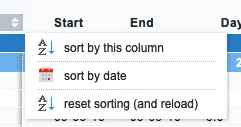
Hover over a column header, click the small arrows that appear, and choose sort by this column. Choose it again to flip the order. That works for any column in your chart: the task name, an assignee, the start or end date, the duration.

Your chart remembers the order. The next time you open it, the rows are still sorted the way you left them.
Sort by date
Choose sort by date in the same menu for a quick timeline view: the row that starts first goes to the top, and rows without a date move to the bottom. Groups follow their earliest row, so the phase that starts first leads. This is a one-off view. Reopen the chart and you’re back to your saved order.
Back to the original order
Choose reset sorting (and reload) and the chart reloads in its default order, the order your integration gives your tasks.
Sorting only changes how your chart shows the rows. Your tasks keep their order in your integration. Want to move a single row by hand instead? Drag it to a new spot, wherever your integration allows that.