



Finished tasks from an earlier phase, a recurring admin chore, a list that isn’t yours: not everything in a project belongs on your timeline. Right-click a row, choose hide row, and your Gantt chart shows only the work still ahead. Nothing is deleted, nothing changes in your integration, and every hidden row comes back whenever you need it.
The video takes you from hiding the rows your client can skip to bringing one back and sharing the chart, in about a minute. The steps are written out below.
Show transcriptHide transcript
Hide a row or a whole group
On the left side of your chart, right-click the row you want out of the way and choose hide row. The row disappears from your chart.
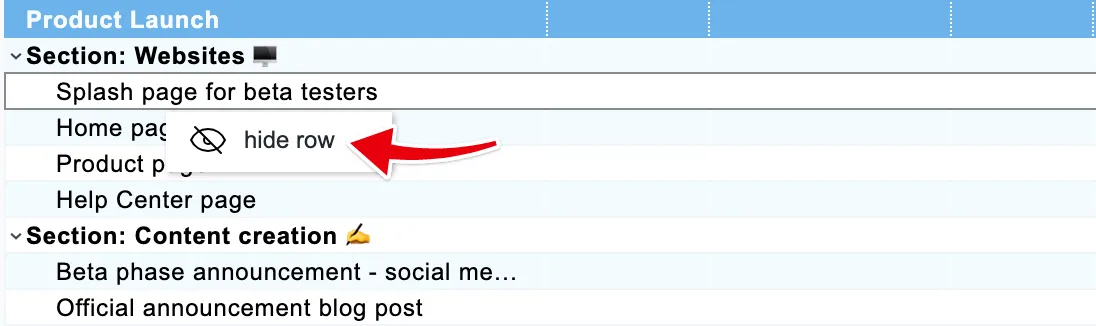
The same works for many groups. Right-click a list and choose hide row: every task inside it goes with it. That is the quickest way to clear a finished phase off your chart. Not every group can be hidden: if right-clicking a group opens no menu, hide its tasks one by one.
Show hidden rows again
Hidden a row by mistake, or ready to bring a finished phase back? Click Show hidden rows in the toolbar. The number next to it tells you how many rows are hidden, and they reappear in your chart in light gray. If the button reads No hidden rows, nothing in this chart is hidden.
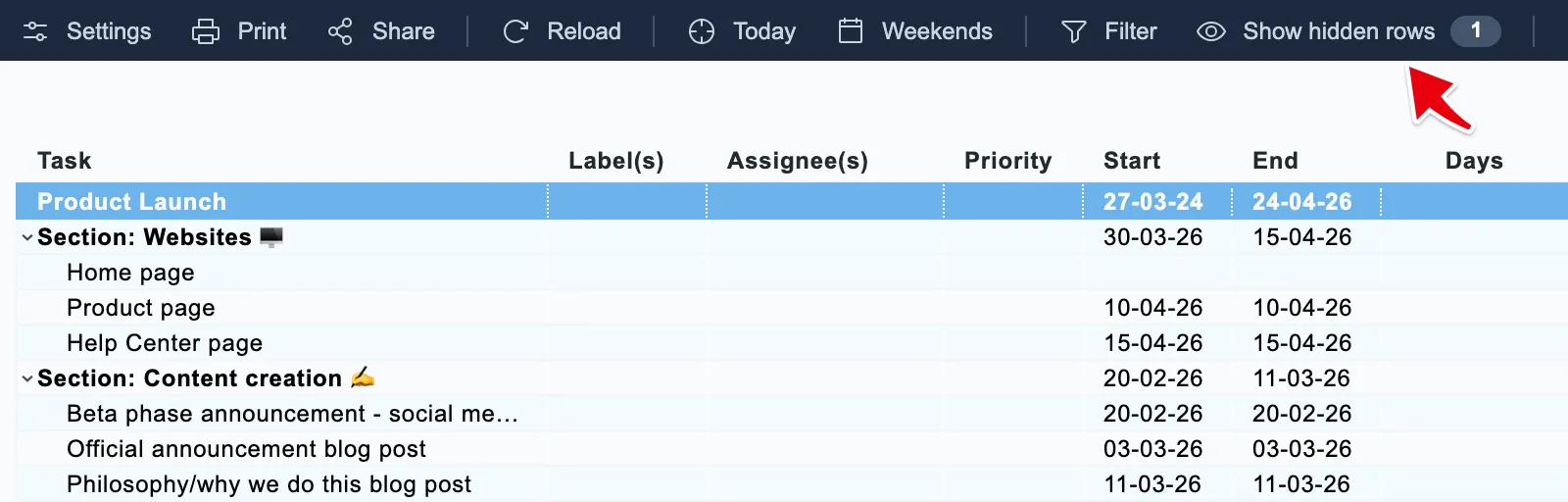
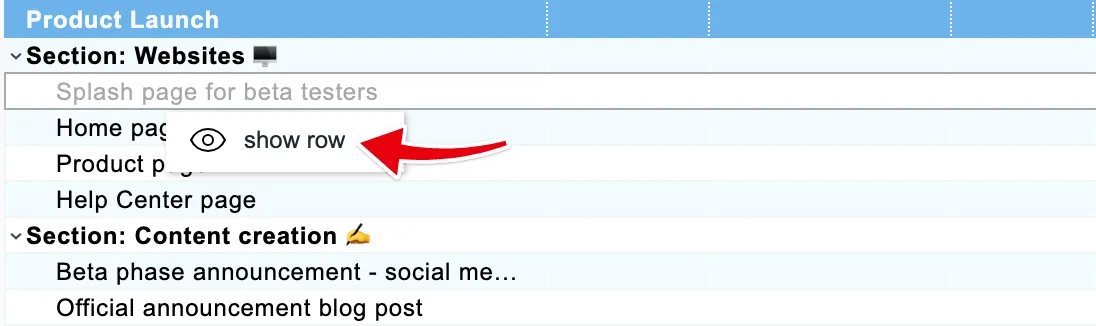
To unhide a row, right-click it and choose show row. It stays in your chart from now on. Click Hide hidden rows to tuck the rest away again; reloading the chart does the same.
What hiding does and doesn’t do
Hiding only changes your Gantt chart. Nothing is written to your integration, so your team still sees everything there as before, and a hidden task keeps its dates.
Hidden rows stay hidden in the read-only link you share with clients and in your exports. Filters don’t carry over to a read-only link, so hiding is how you decide what your client sees.
Hiding applies to the task itself, not to one chart. A hidden row stays hidden on every chart that includes it, for you and for everyone else who opens one.
Hide instead of delete
There is no delete in your chart on purpose. Your tasks live in your integration, and the chart is a view of them. Want a task gone for good? Delete it in your integration and it leaves the chart on the next reload. Want it out of the way for now? Hide it.