




Need to show a client where the project stands? Share your Gantt chart with them read-only. They don’t need a Ganttify account to open it, and they can look around without changing anything.
Share your chart with anyone
Start from My Charts, or from the chart itself if you already have it open.
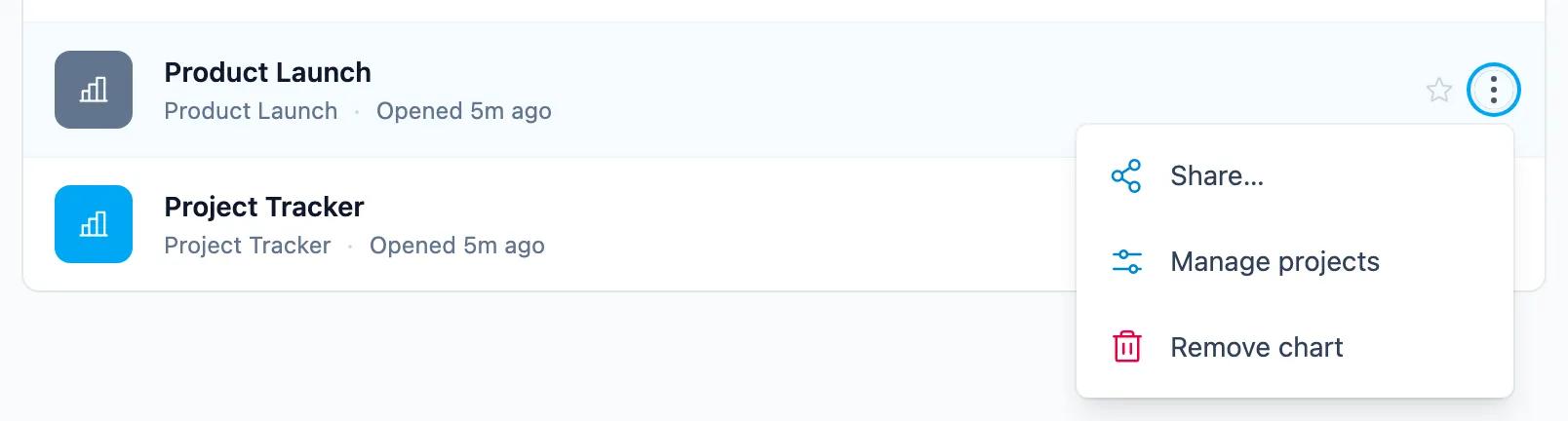
From My Charts
- Go to My Charts.
- Click the three dots next to the chart you want to share.
- Choose Share.
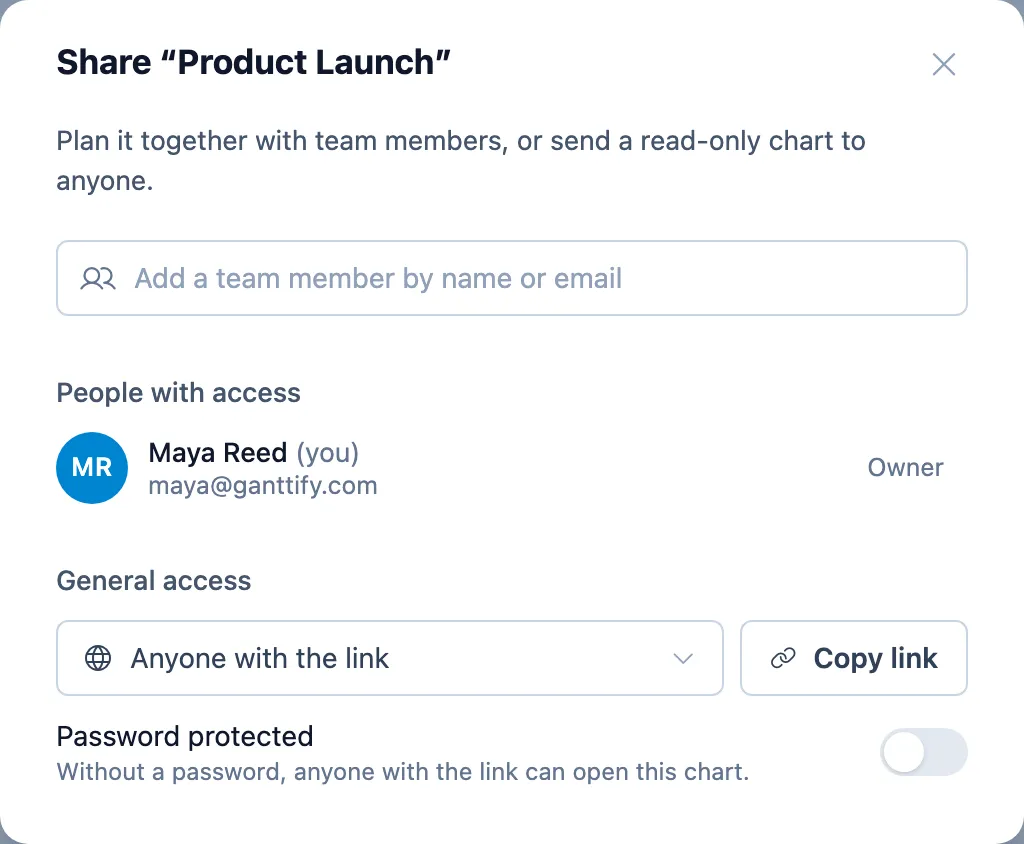
- Under General access, choose Anyone with the link. Copy link appears.
- Click Copy link and paste it into an email or message to your client.
From an open chart
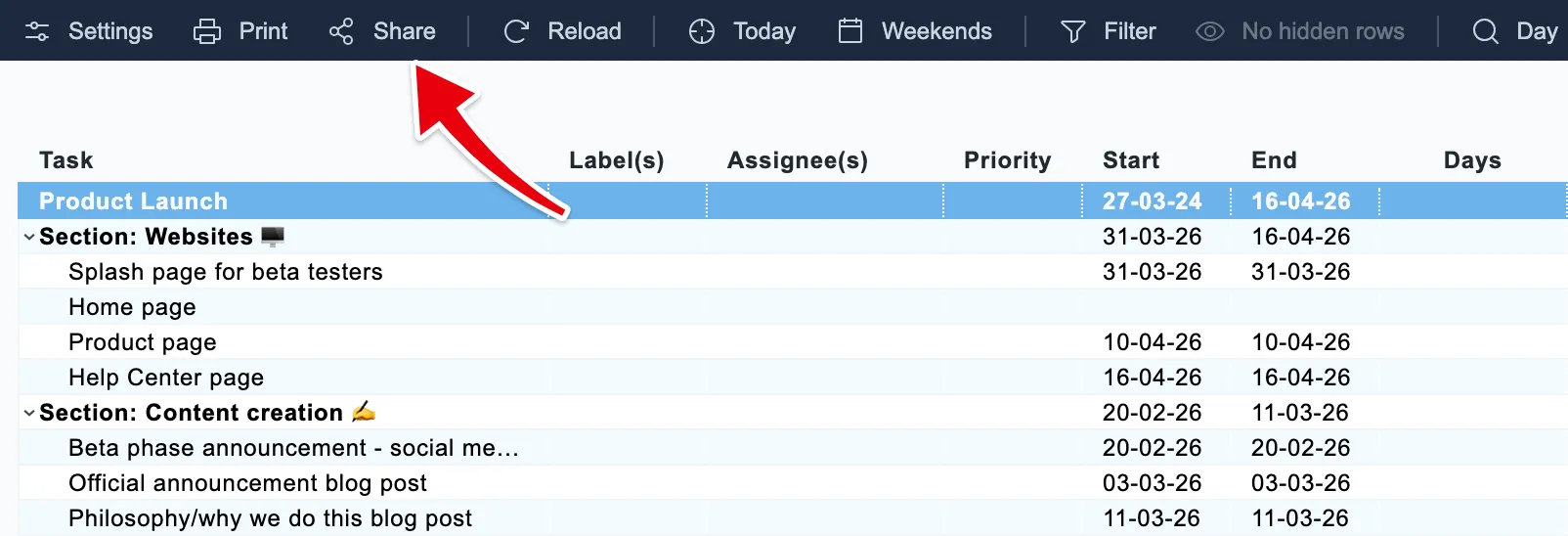
- Click Share in the toolbar at the top of the chart.
- Under General access, choose Anyone with the link. Copy link appears.
- Click Copy link and paste it into an email or message to your client.
Sharing a multi-project Gantt chart? Your client sees every project on it, in one timeline.
What your client sees
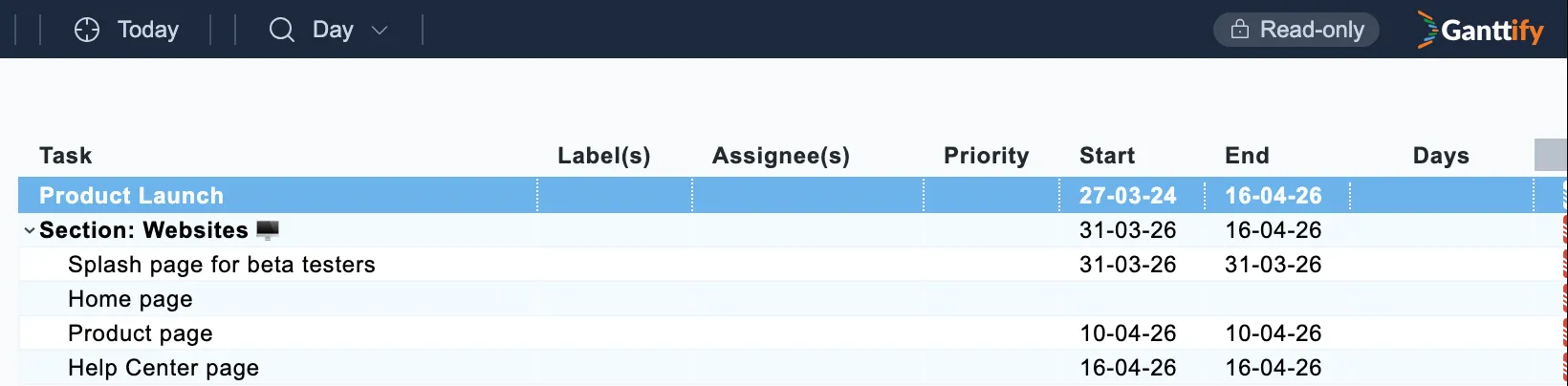
Your client opens the chart in their browser, without signing up for anything. The toolbar shows a Read-only label. They can scroll through the timeline, jump to Today and zoom in or out, but they can’t move tasks, change dates, filter or print.
Rows you’ve hidden stay hidden for your client. Filters don’t carry over, so they see every row you haven’t hidden. To keep a task out of their view, hide its row instead of filtering it out.
Move a due date, in Ganttify or in your integration, and your client sees the new date the next time they open the chart or refresh the page. Usually that’s right away, and at most a couple of minutes later. There’s nothing to send again.
Your client can open the chart for as long as your Ganttify plan is active.
Add a password
For a chart with confidential details, add a password. Your client then types it in before the chart opens.
- Open Share for the chart, from My Charts or the chart’s toolbar.
- Check that Anyone with the link is chosen.
- Turn on Password protected.
- Type a password of at least 8 characters and click Save. The dialog now says “Only people with the password can open this chart.”
When your client opens the chart, they’re asked to enter the password and click View chart. Send them the password separately, for example by text message rather than in the same email.
To change the password later, type a new one over the old one and click Save.
Stop sharing a chart
- Open Share for the chart, from My Charts or the chart’s toolbar.
- Under General access, choose Only people with access.
The link stops working for good, and its password goes with it. Anyone who opens that link later, your client included, is asked to log in to Ganttify and doesn’t get to see the chart. Team members you’ve shared the chart with keep their access and still find it on their My Charts.
Changed your mind? Choose Anyone with the link again to get a new link, without a password. Send your client the new link, and add a password again if the chart needs one. The old link stays closed, so nobody who still has it can get back in.
To see which of your charts are shared, look at My Charts. A globe after a chart’s name means it’s shared with anyone, and a lock means it’s password protected as well.
Planning the work together with your team? See share a Gantt chart with your team.