



Need to hand your plan to someone who isn’t in Ganttify, drop a snapshot into a slide deck or status report, or print it and pin it to the wall? Export your Gantt chart as a PDF or an image. The file shows the chart exactly as it looks on your screen, so what you hide, filter and color before you export is what ends up on paper.
Save your Gantt chart as a PDF or image file
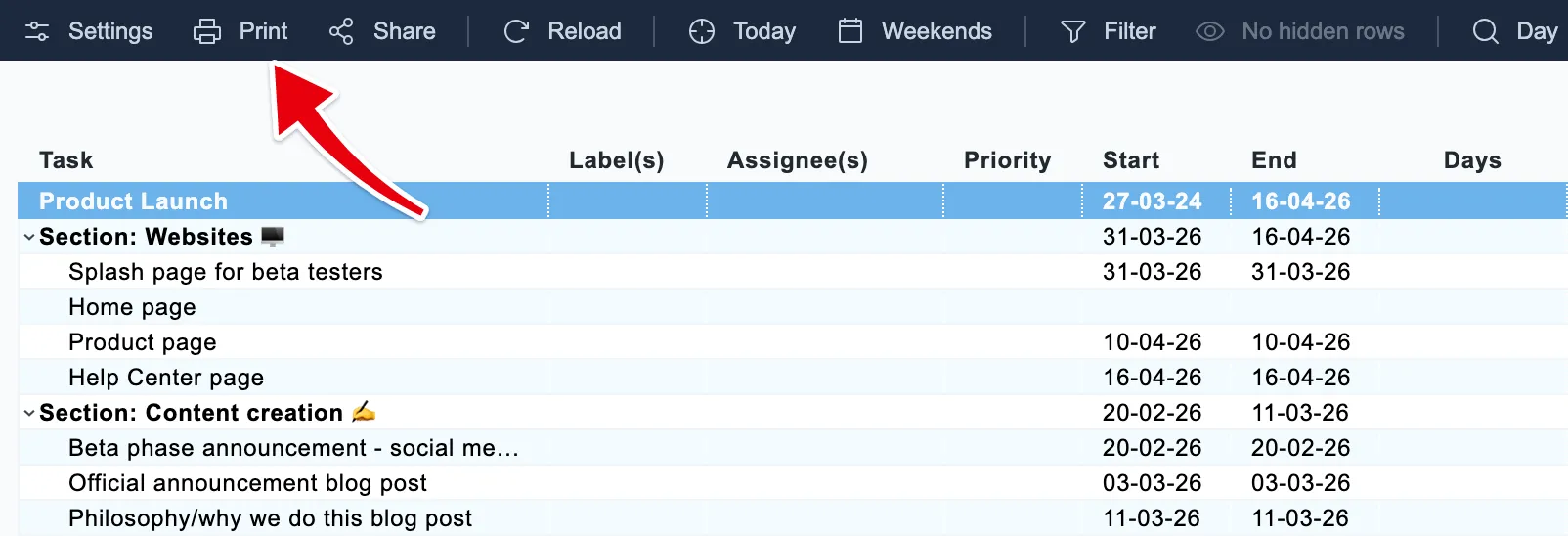
Open the chart and click Print in the toolbar. The export window opens with the chart’s current settings filled in.
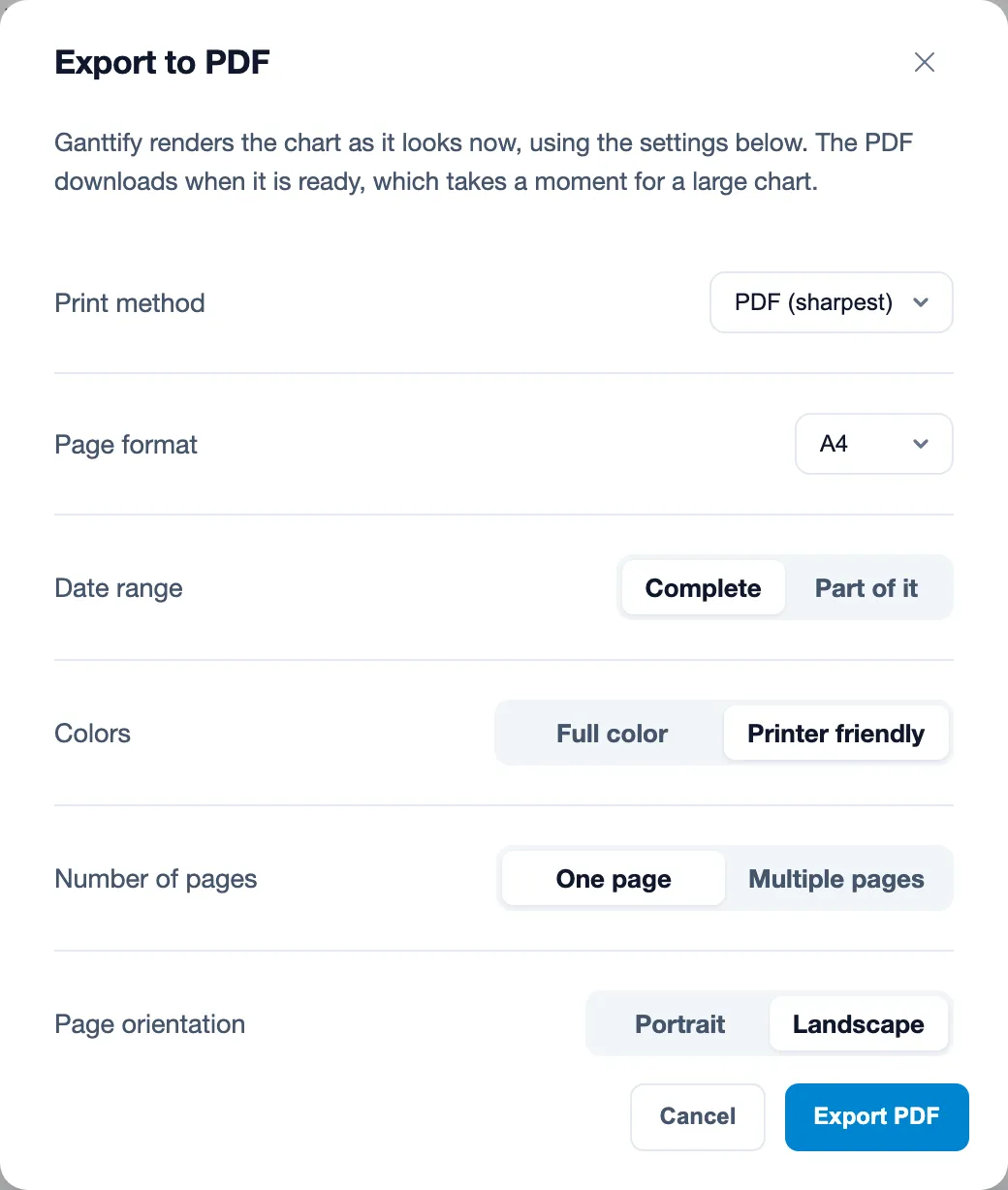
Then pick the file type under Print method:
PDF (sharpest) keeps text and lines crisp at any zoom level. It is the right choice for printing, for a client who wants to zoom in, and for a chart that spans many months.
Image file gives you a picture of the chart. That is handy for a slide, an email or a chat message, where a PDF would be one click too many.
Click Export PDF or Export image. You’ll see “Preparing your export” while the file renders, and the download starts as soon as it is ready. A large chart takes a moment longer.
Choose the paper size and page orientation
These options appear when you export a PDF; an image has no paper size, it is simply as big as the chart. Under Page format the export window offers Letter, A4, Legal, A3, Ledger, A2, A1 and A0. Larger sizes keep more of the timeline readable on one page, so a long project usually looks better on A3 or Ledger than on A4 or Letter, even if you print it on smaller paper afterwards.
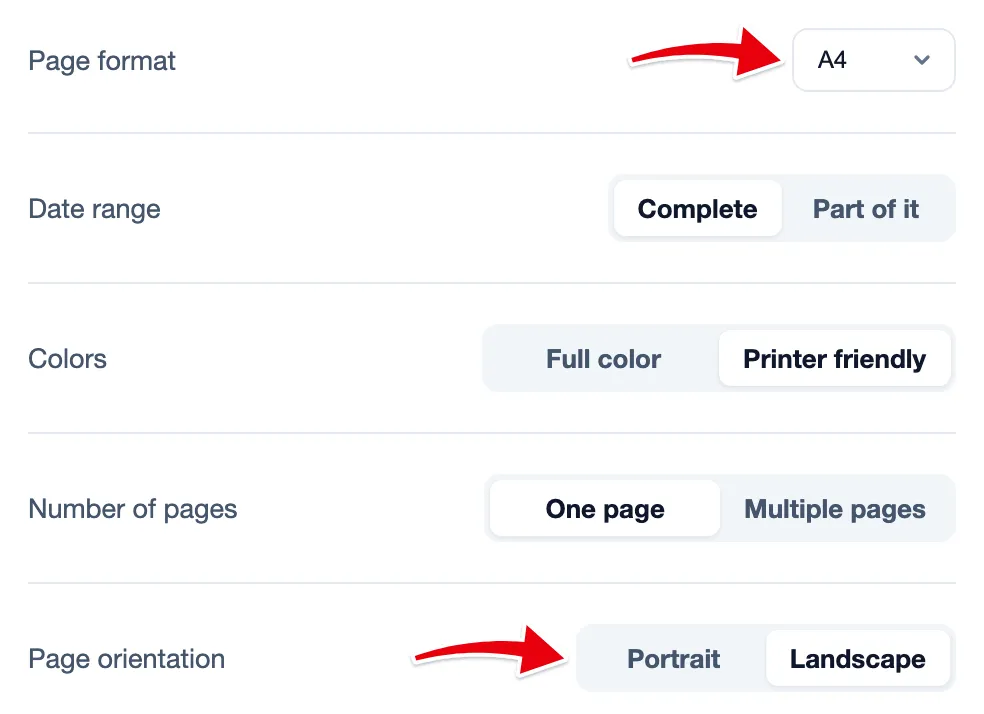
Choose Portrait or Landscape under Page orientation. A timeline is wide, so landscape fits more weeks across the page and is the better default for most charts. Number of pages decides what happens when the chart is bigger than the sheet: One page fits the whole chart on a single sheet, Multiple pages spreads it over several.
The dates in the file follow the chart’s date format. Change it under Date format in the chart’s settings, where “Save as my default date format” makes it the format for every export you make. Read more in set your default date format.
Print your Gantt chart
Print in the toolbar opens the export window, not a print dialog: export a PDF and print that. The PDF is sized to the paper format you picked, so choose the size you’ll print on. To save ink on the shaded weekends and colored time blocks, pick Printer friendly under Colors in the export window.

Export part of a long chart
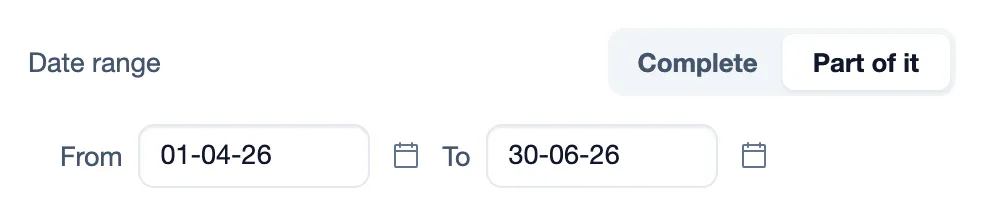
A chart that runs for years, or holds hundreds of rows, does not have to go into one file. In the export window, under Date range, choose Part of it and pick a From and To date to export one phase, one quarter or one month at a time.
Width is only half of it. Rows add height, so before you export, hide the rows you don’t need and collapse the groups that are already done. Filtering works too: filter the chart by color, icon or date range, and only the matching rows go into the file.
The export is stuck or shows an error
Most of the time, “Preparing your export” ends in a download within a few seconds. If it keeps spinning, or you see “Couldn’t export the chart”, try these in order:
- Wait a minute and click the export button again. A busy moment on our side is the most common cause, and the second try usually works.
- Make the export smaller: pick Part of it under Date range, or hide and collapse rows, then export again.
- Try the other file type. If the PDF fails, an image often still works, and the other way round.
Still stuck? Email us the link to the chart and the browser you use, and we’ll take a look at that chart.
Can I export a Gantt chart to Excel or CSV?
No. The export window gives you a PDF or an image file, nothing else. There is no Excel or CSV export, because your tasks already live in your integration, and that is where the data belongs.
A file also goes stale the moment you save it. To give someone a view of the plan that stays current, share a read-only link instead. Your client opens the live chart in their browser without an account, and every change you make shows up for them without another export.