


Opened Ganttify and your projects aren’t showing, or a chart you worked on yesterday stays blank? Nothing you planned is gone. Usually the connection to your integration needs renewing, and reconnecting brings everything back. Start there. The steps are the same for every integration, even one that calls its projects boards or calendars. The sections below cover the other causes, one symptom each.
Projects not showing in the Project List: start with the connection
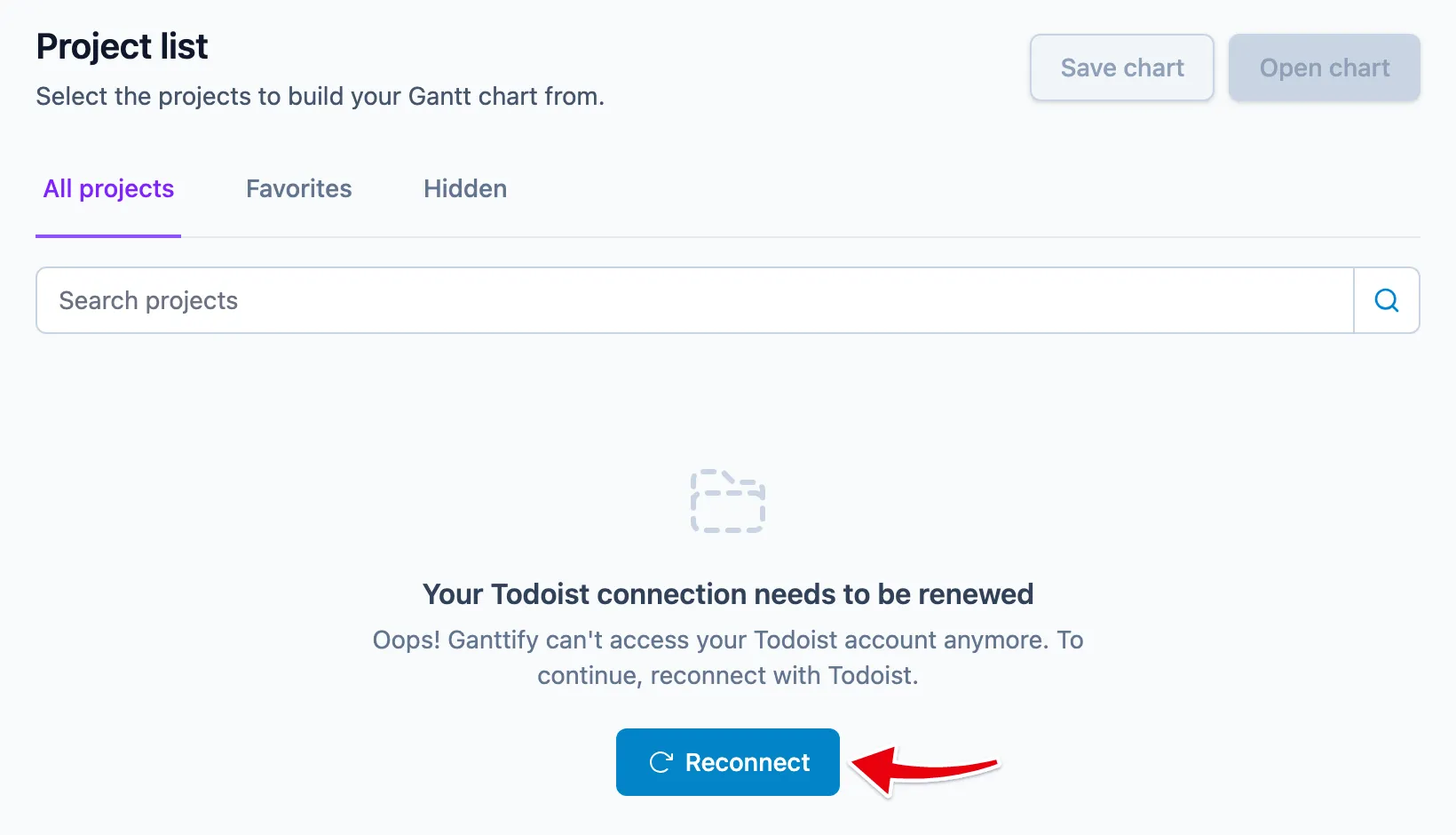
Open the Project List. If the connection has expired, you’ll see “Your connection needs to be renewed” with a Reconnect button. Click it, sign in to your integration again, and reload the Project List.
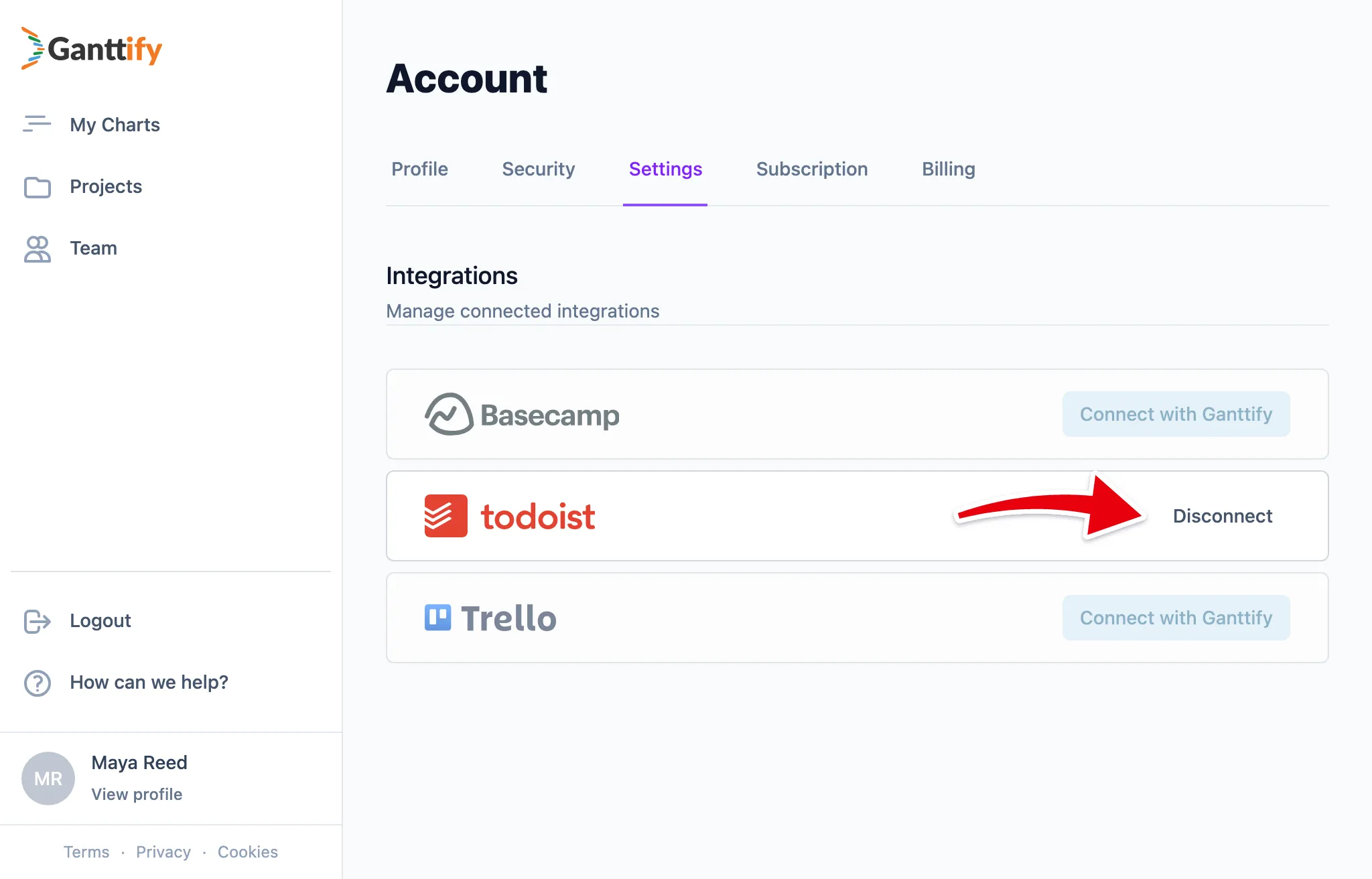
No notice, but the projects are still missing? Head to your account’s Settings page, under Manage connected integrations. Disconnect the integration there and connect it again.
Reconnecting deletes nothing. Your saved charts keep their dates, time blocks, colors and dependencies exactly as they were.
One project is missing, or a new project isn’t showing up
The Project List shows the projects your integration account can see right now. A project that was archived or closed in your integration, or is no longer shared with you there, drops off the list. Check the project in your integration first. Once it’s active and shared with you again, click Refresh projects at the top of the Project List. A project you just created in your integration shows up after the same click.
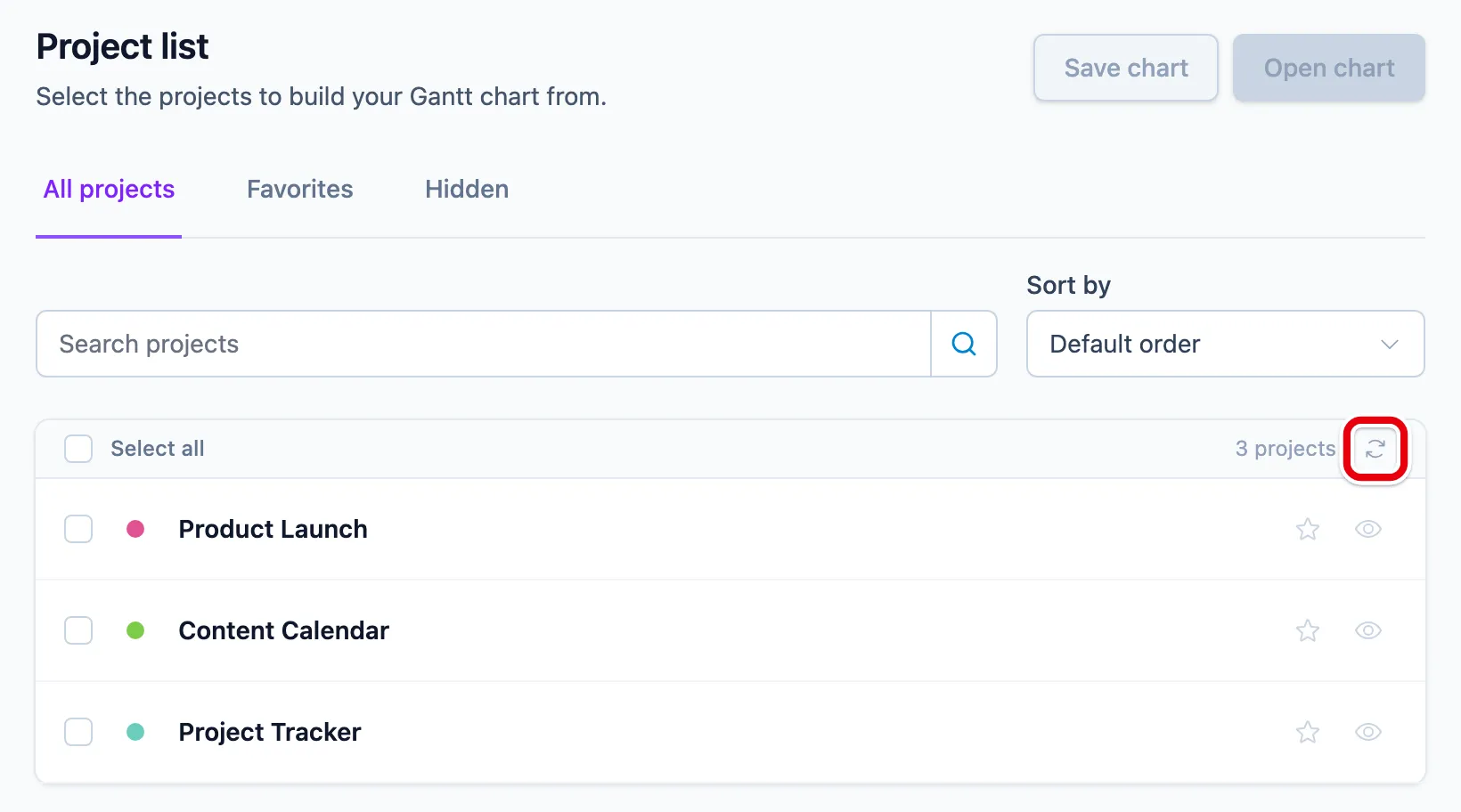
Can’t find a project you know is active? Look at the Hidden tab. Projects you hid to keep the list tidy wait there, and one click on the eye icon brings a project back. Read more in getting to know your Project List.
“Couldn’t load projects” or “Could not reach your integration”
Neither notice means you did something wrong. “Could not reach your integration” means the integration isn’t answering right now; its status page, linked from the notice, tells you whether it’s a known outage. “Couldn’t load projects” means something went wrong while talking to the integration. Either way, wait a minute and load the list again, with the Reload projects button or a page reload. If it keeps happening for hours, email us with the time it started (see the last section).
The Gantt chart won’t load, opens blank or keeps loading
A chart that opens but shows nothing, or never finishes loading, usually has one of two causes.
The chart holds a lot of projects. Every project is read in full each time the chart opens, so a chart with dozens of projects can take long enough to time out. Open a smaller selection, and split a large plan into several saved charts instead of one.
The connection expired while the chart was open. Reload the page. If you land on the Project List with a reconnect notice, follow the first section on this page, then open the chart again.
Changes made in your integration don’t show up in the chart
The chart reads your integration when it opens, so a due date you changed in your integration while the chart was open appears after you reload the chart. The other direction is faster: a change you make on the chart reaches your integration within moments.
Still not there after a reload? Click Refresh projects on the Project List, then open the chart again.
Still stuck? Here’s what to send
Email support@ganttify.com with the link to the chart, the browser you’re using and a screenshot of what you see. If a notice is on screen, include its text. With those, we can usually find the cause in one go instead of asking for them first.