Great! You have created your Ganttify account, linked the integration of your choice, and are now looking at your Project List. What’s next?
Show transcriptHide transcript
Your Project List shows the projects from your integration. Tick one project or several, then click Open Chart to open them as one Gantt chart in a new tab. The chart is also saved with your charts, so you can come back to it anytime. Only want it saved for later? Click Save Chart instead, and you’ll see a short confirmation with a link to the new chart.
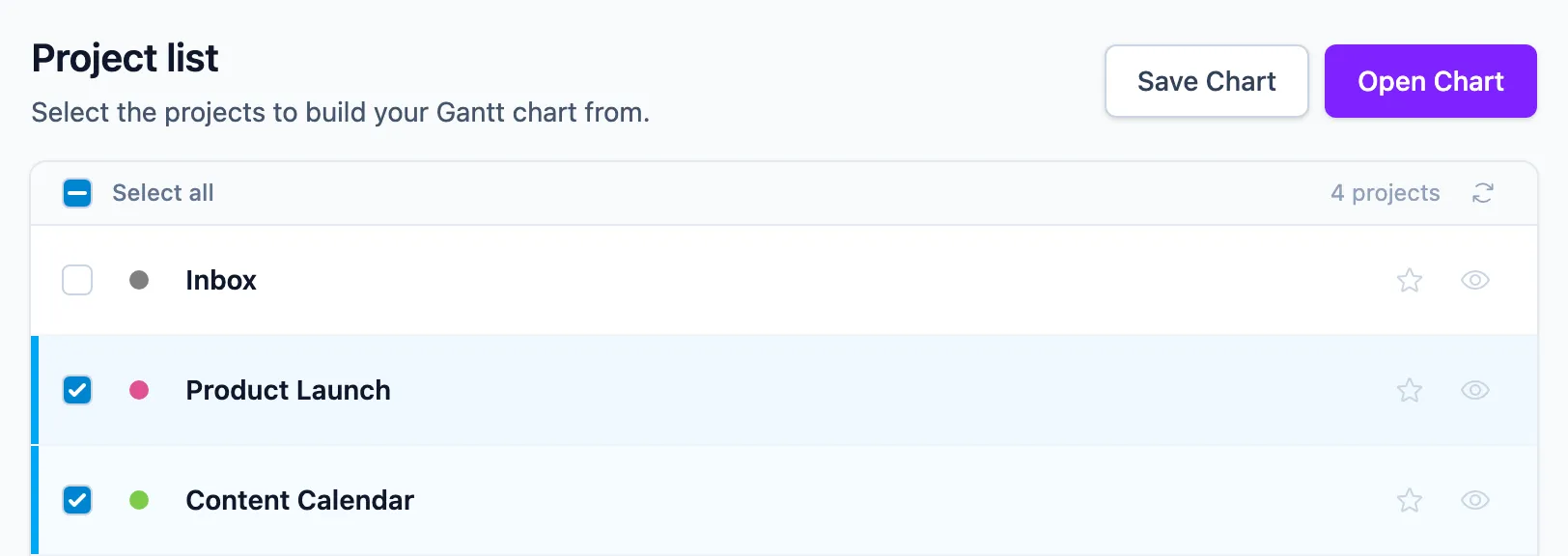
Is your list filling up with work that’s already done? Click the eye icon next to a finished project to hide it. Hidden projects aren’t deleted: they wait on the Hidden tab, and you can bring them back anytime. For the projects you open every day, click the star next to each one to add it to Favorites, so it’s one click away next time. Looking for one project in particular? Type a few letters of its name, and the list narrows as you go.
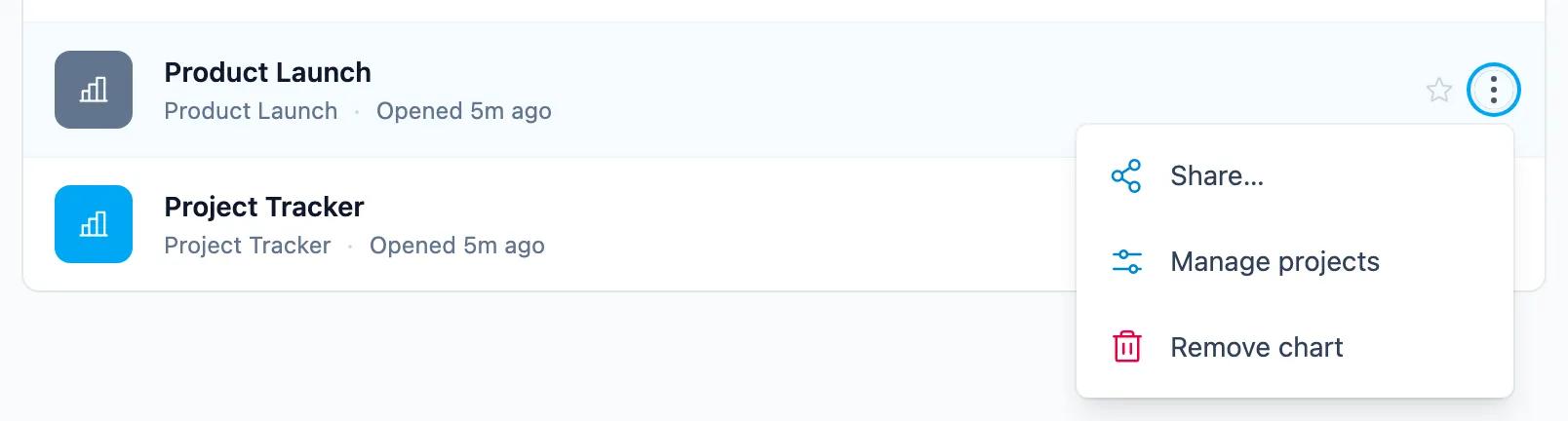
Want to show the plan to a client or work on it with your team? That happens on the chart itself: open it and choose Share in the toolbar, or pick Share from its three-dot menu on My Charts. From there you can send a read-only chart to clients and stakeholders or share a chart with your team.
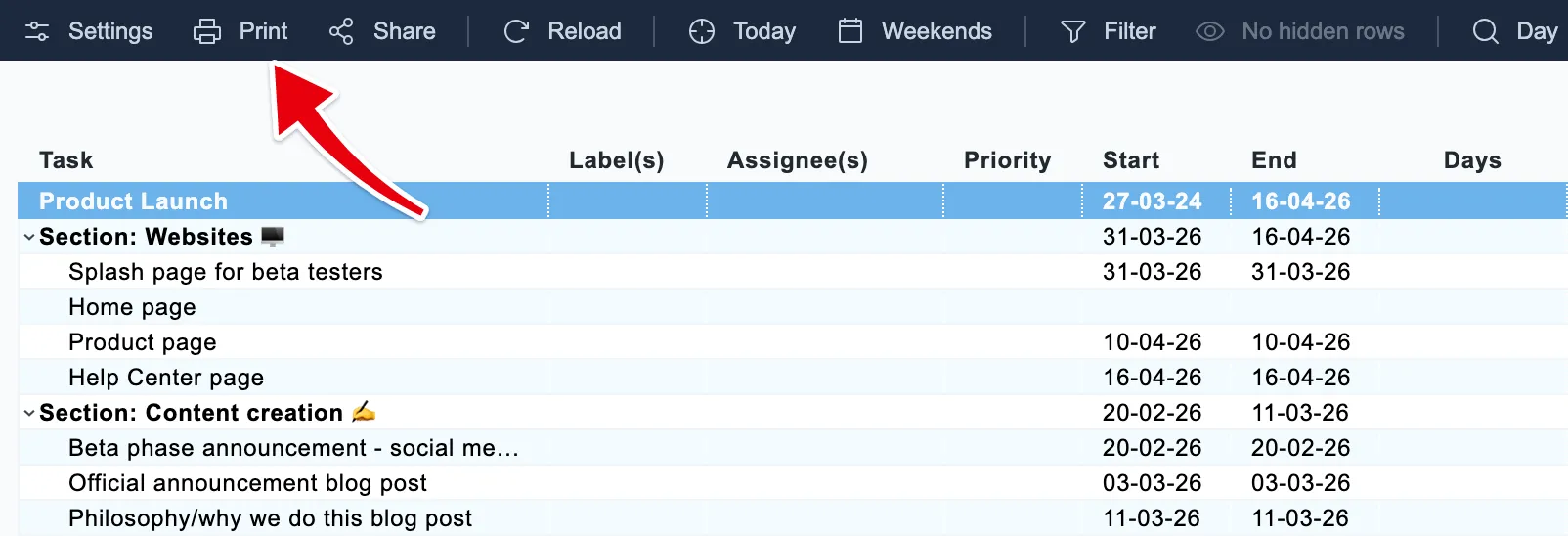
Need an image or PDF of your plan? That works from the open chart too: click Print in the toolbar and export the chart as a PDF or an image file.