




Want your team to help keep the plan current? Share the chart with them, and choose who can change it and who only needs to follow along.
Share your chart with a team member
Start from My Charts, or from the chart itself if you already have it open. Either way, the team member joins the chart as Read-only, so they can follow along without changing anything.
From My Charts
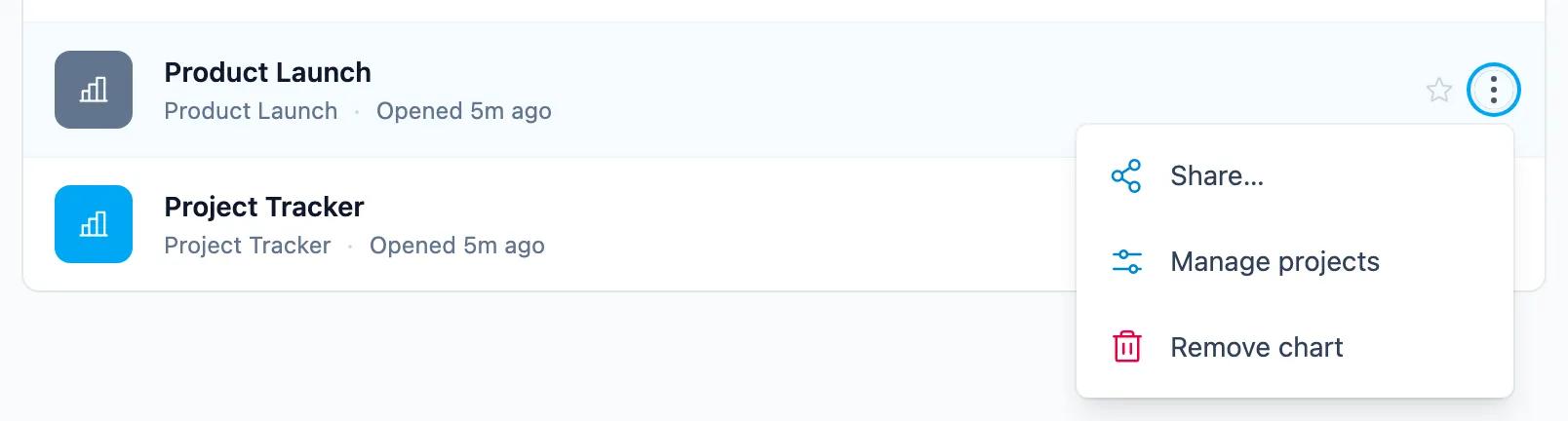
- Go to My Charts.
- Click the three dots next to the chart you want to share.
- Choose Share.
- In Add a team member by name or email, type their name or email.
- Pick them from the list. They appear under People with access as Read-only.
From an open chart
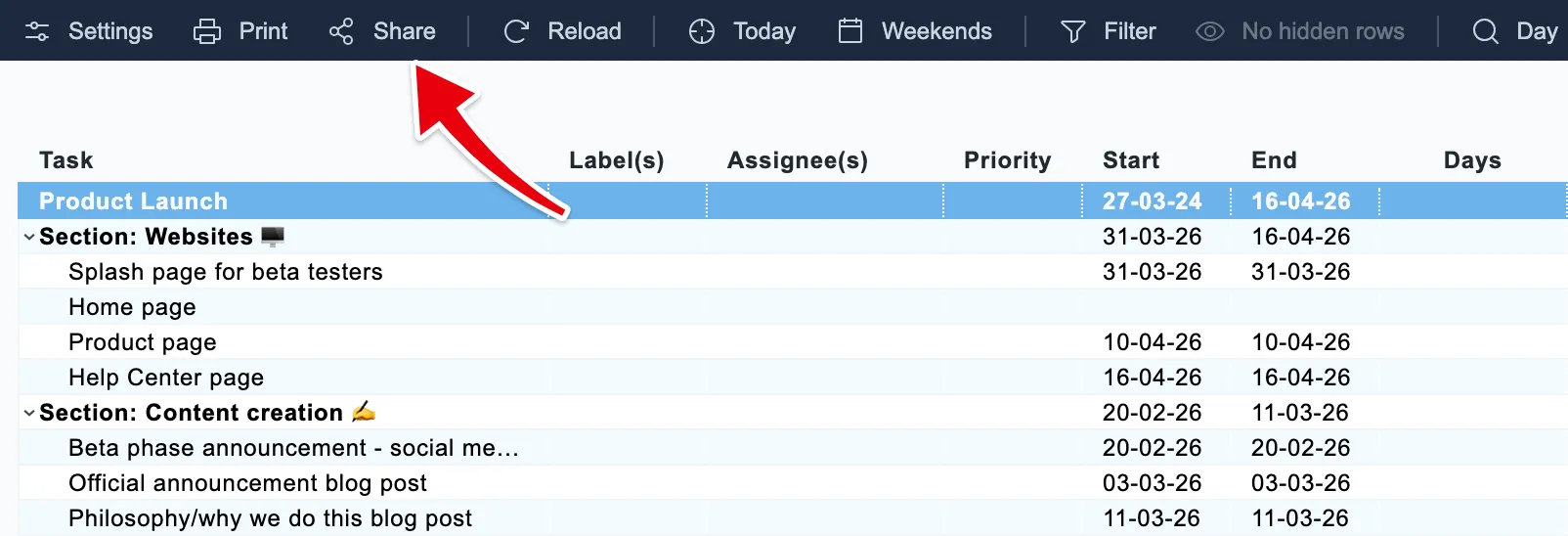
- Click Share in the toolbar at the top of the chart.
- In Add a team member by name or email, type their name or email.
- Pick them from the list. They appear under People with access as Read-only.
Let a team member edit the chart
Editing works through the team member’s own account in your integration. So before you give them Can edit in Ganttify, they need their Ganttify account connected to the same integration, with the chart’s projects shared with them there.
- Share the chart’s projects with the team member in your integration.
- Open Share for the chart, from My Charts or the chart’s toolbar.
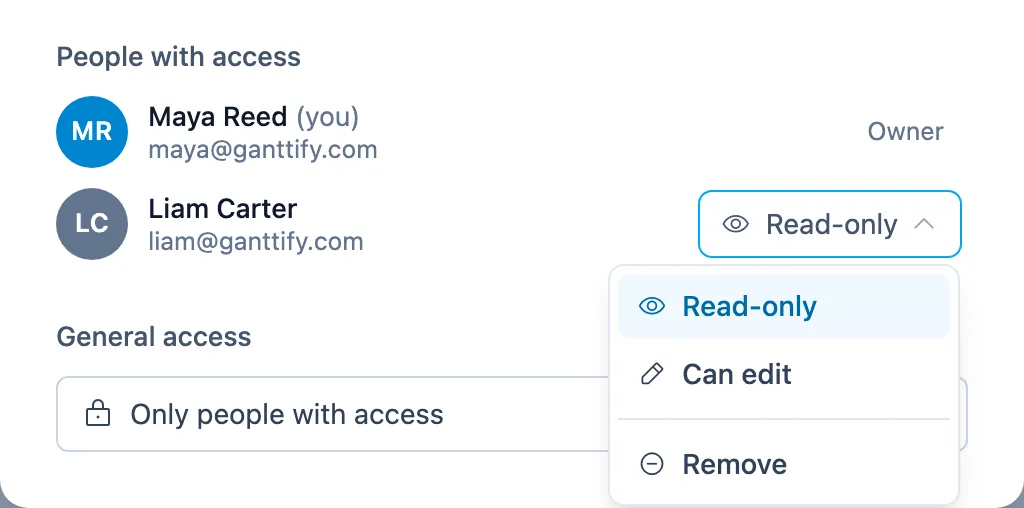
- Click Read-only next to their name and choose Can edit.
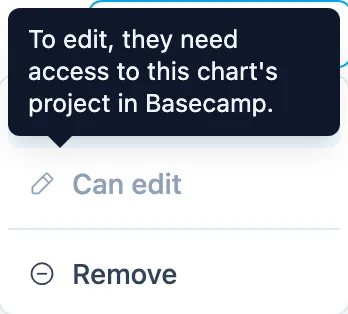
If Can edit is greyed out, the chart’s projects aren’t shared with them in your integration yet. Once you’ve shared them, allow up to 5 minutes, then open Share again: Can edit is now ready to pick.
No team yet?
Sharing a chart with team members is only available on the Small Team and Large Team plans. On a Personal plan, upgrade to one of the team plans first. On a team plan, the people you share with need to be on your team, so invite them to your team before you share. Read more about business and team accounts. Only need someone to see the chart? Send them a read-only chart instead. That works on every plan, without adding anyone to your team, and you can protect it with a password.
What your team member sees
The chart appears on your team member’s My Charts, under All charts and on the Shared tab. We don’t email them about it, so let them know it’s there.

With Read-only, they can scroll through the timeline, jump to Today and zoom in or out, but they can’t change anything.

With Can edit, they see your name without the label, and they can shift dates and move tasks just like you. Changes they make show up in your project under their own name.
Access always follows the integration. If a team member with Can edit loses access to the projects in your integration, they see the chart read-only, with a notice asking them to get access to its projects in your integration again. They can edit as soon as they have that access.
Change or remove access
- Open Share for the chart, from My Charts or the chart’s toolbar.
- Click the role next to the team member’s name and choose Read-only, Can edit or Remove.
Removing someone takes the chart off their My Charts. Nothing of theirs is deleted. When someone leaves your team, or you remove them from it, they lose access to every chart you shared with them.
Only you, as the chart’s owner, can change who has access.
Showing the chart to a client instead? See share a read-only Gantt chart with clients.