



Planning a Gantt chart with colleagues? Invite them to your Ganttify team. Each team member signs in with their own account, uses one of your seats, and can open the charts you share with them, either to follow along or to help plan. One invoice covers everyone.
Holding an invitation email yourself? Skip to what happens when you accept.
Who needs a seat
A seat is for someone who opens charts inside Ganttify: a colleague who plans with you, or one who follows your charts from their own account. If you have a team of ten but only three of them work in Ganttify, you need three seats.
Clients and stakeholders who only need to see a chart don’t need a seat, or an account. Share a read-only link with them instead.
How many seats each plan includes
Personal is for one person and has no team. Small Team seats up to 10 people, and Large Team has no limit. During your free trial you can invite up to 10 people, so you can try planning together before you choose a plan. Read more about the team plans.
Invite team members
- Open Team from the menu.
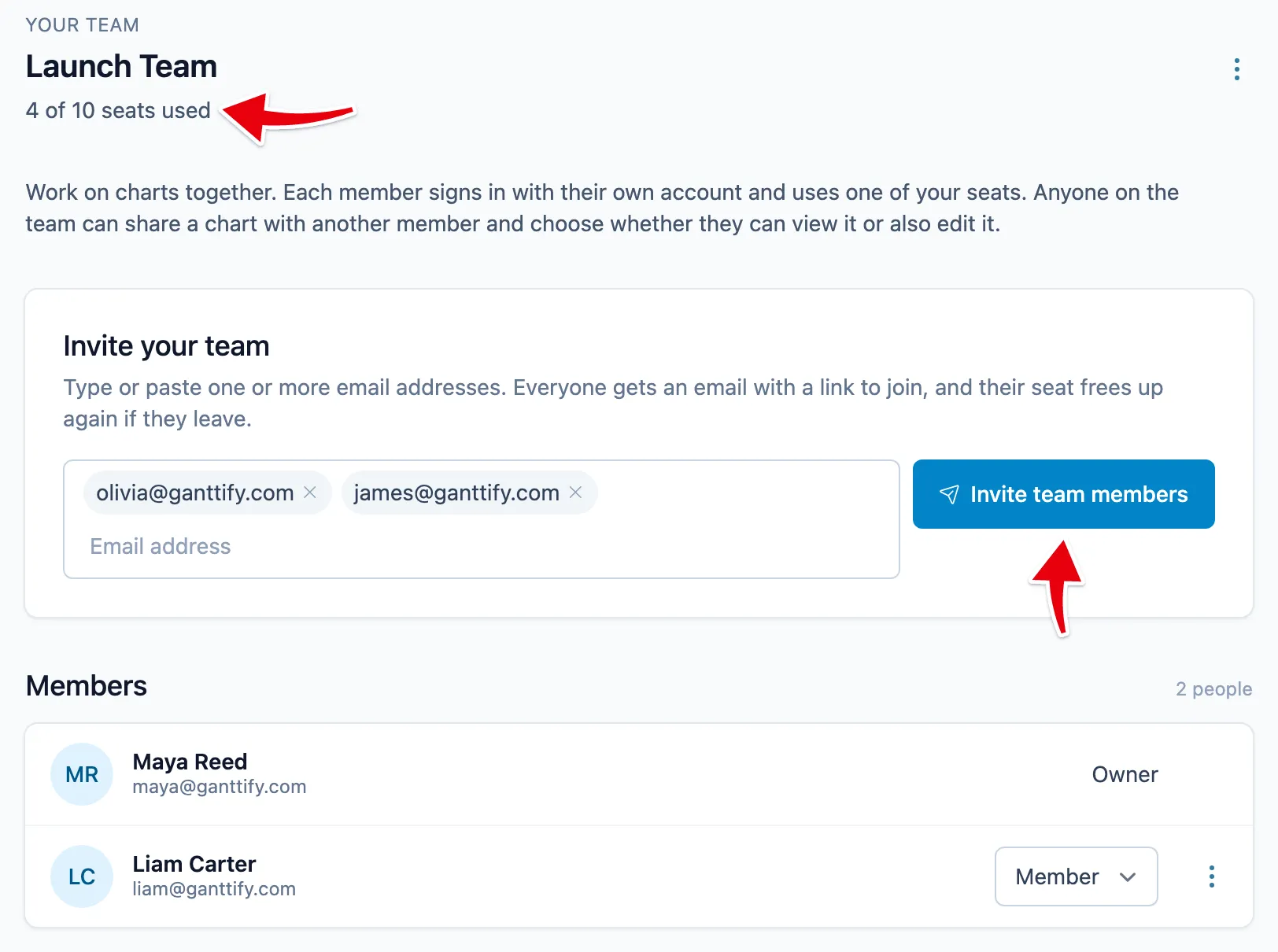
- Under Invite your team, type or paste one or more email addresses.
- Click Invite team members.
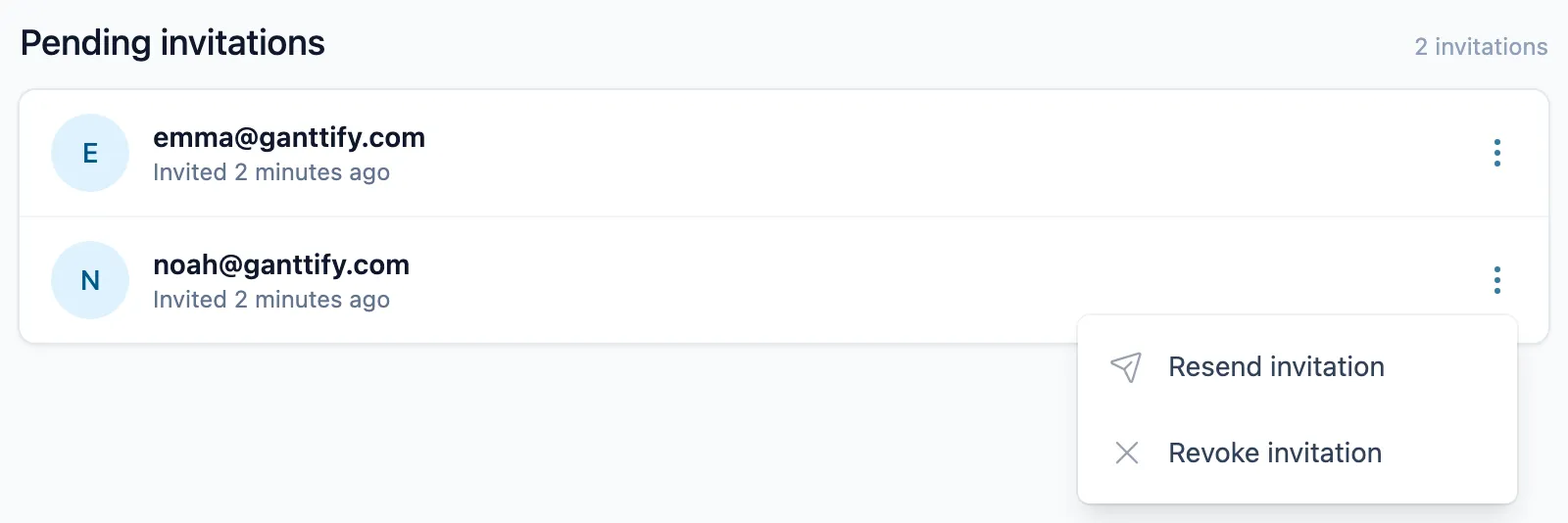
Everyone you add gets an email with a link to join. Nobody joins your team without accepting. Until they do, they sit under Pending invitations, where you can resend the invitation or revoke it. The Team page shows how many seats are in use, for example “4 of 10 seats used”, so you always know how much room is left. A pending invitation holds a seat too, until you revoke it or the person joins.
A pending invitation stays valid for 30 days after it was last sent. If a colleague let it lapse, resend it and the clock starts again. The same goes for a colleague who says the email never arrived: ask them to check their spam folder for a message from Ganttify, and resend the invitation from Pending invitations.
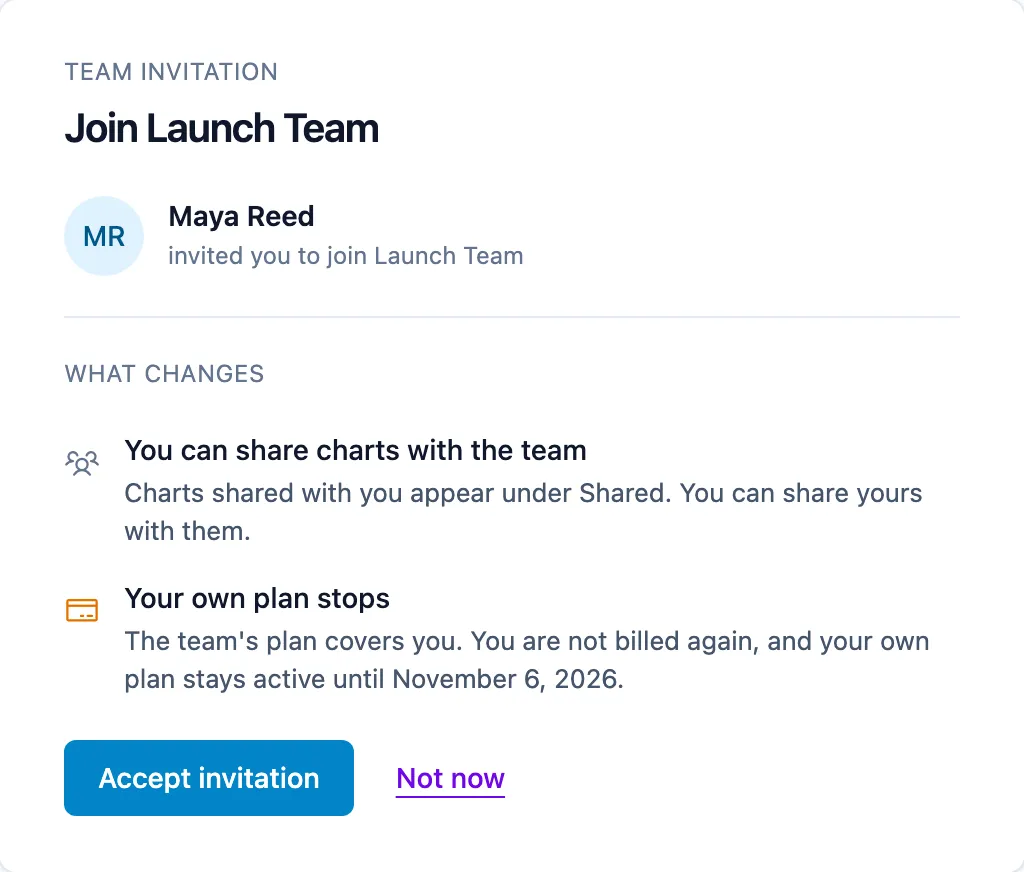
What your colleague sees when they accept the invitation
The invitation email explains who invited them and has an Accept invitation button. What happens next depends on whether they already use Ganttify.
New to Ganttify? They choose a password, then connect the integration your team plans in, so they can open the charts you share with them. If they stop partway, they get up to three reminders over the following days, and an account that is never finished is removed. You can invite them again later.
Already on Ganttify? They review the invitation, and What changes spells out what accepting means: your team’s plan covers them from now on, so their own plan stops renewing. A plan they paid for themselves stays active until the end of its period. A person can be on one team at a time, so someone who is already on another team has to leave it first.
Once they accept, the charts you share with them appear on their My Charts under Shared, and they can share their own charts with you. Share a Gantt chart with your team explains how. Want everyone to start from the same chart layout? Set default Gantt chart settings for the team.
Remove a team member or leave the team
Next to each member on the Team page you’ll find a menu with Remove team member. Removing someone frees up their seat right away. They keep their own Ganttify account, but every chart you or other members shared with them disappears from their My Charts.
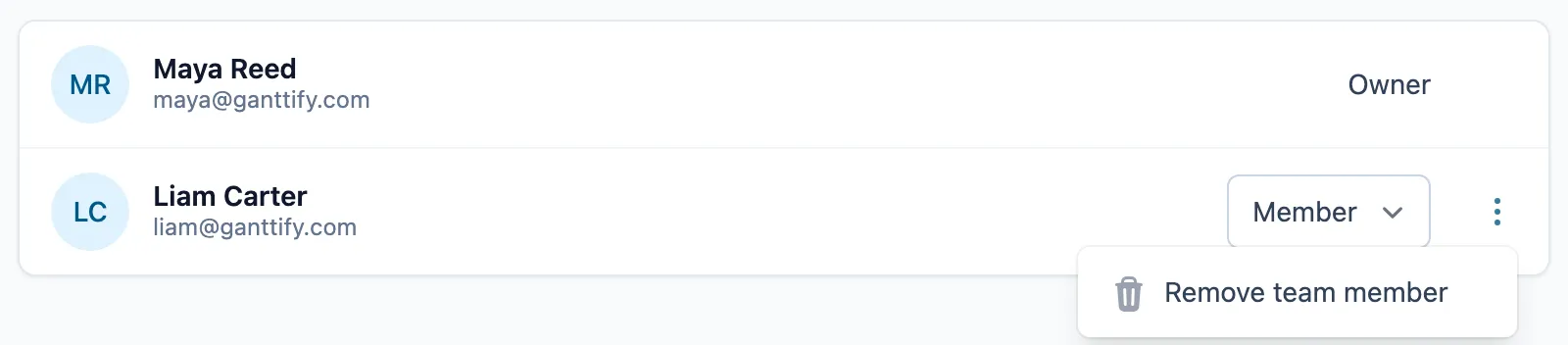
A member who wants to go can choose Leave team themselves, with the same result.
Transfer team ownership
The owner’s plan covers the team’s seats. When the person who set up the team leaves the organization, hand the team over instead of starting again: the charts and members stay in place. The subscription stays with the person who paid for it, so ask us to move it to the new owner before you transfer, and nobody keeps paying for a plan they no longer use.
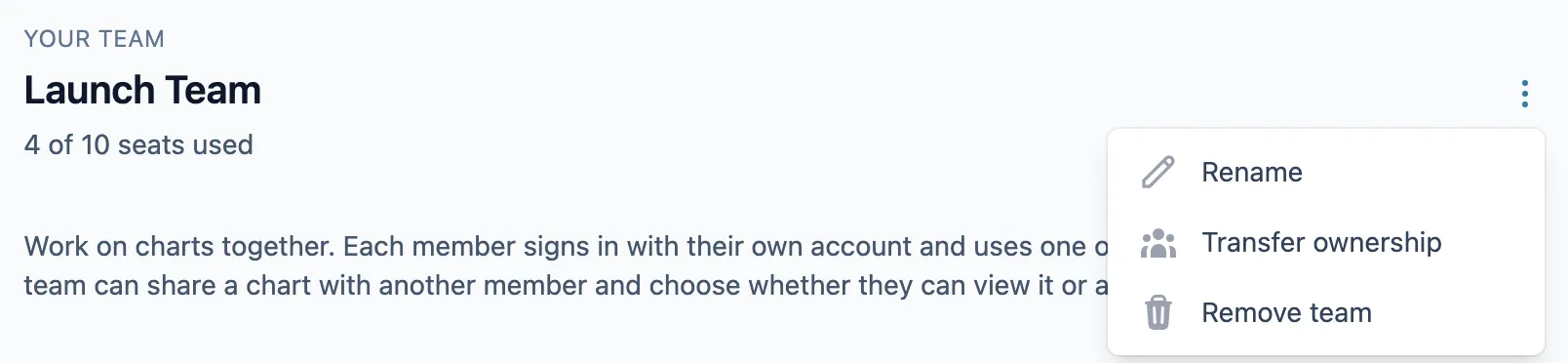
To hand it over, choose Make owner as the member’s role on the Team page, or Transfer ownership from the team options.
Rename or remove the team
The team options at the top of the Team page also let you Rename the team or Remove team. Removing the team takes every member off it. Their accounts and their own charts stay as they are.