



Your team owner can make their view of a chart the default for the team. Switch to those defaults and your chart shows the same columns, column widths, zoom level and timeline settings as theirs, so everyone looks at the plan the same way.
Switch to the team defaults
Click Settings in the top left corner of the chart and choose the Team tab. Turn on Use the team defaults and click Apply changes. The chart reloads with the team layout.
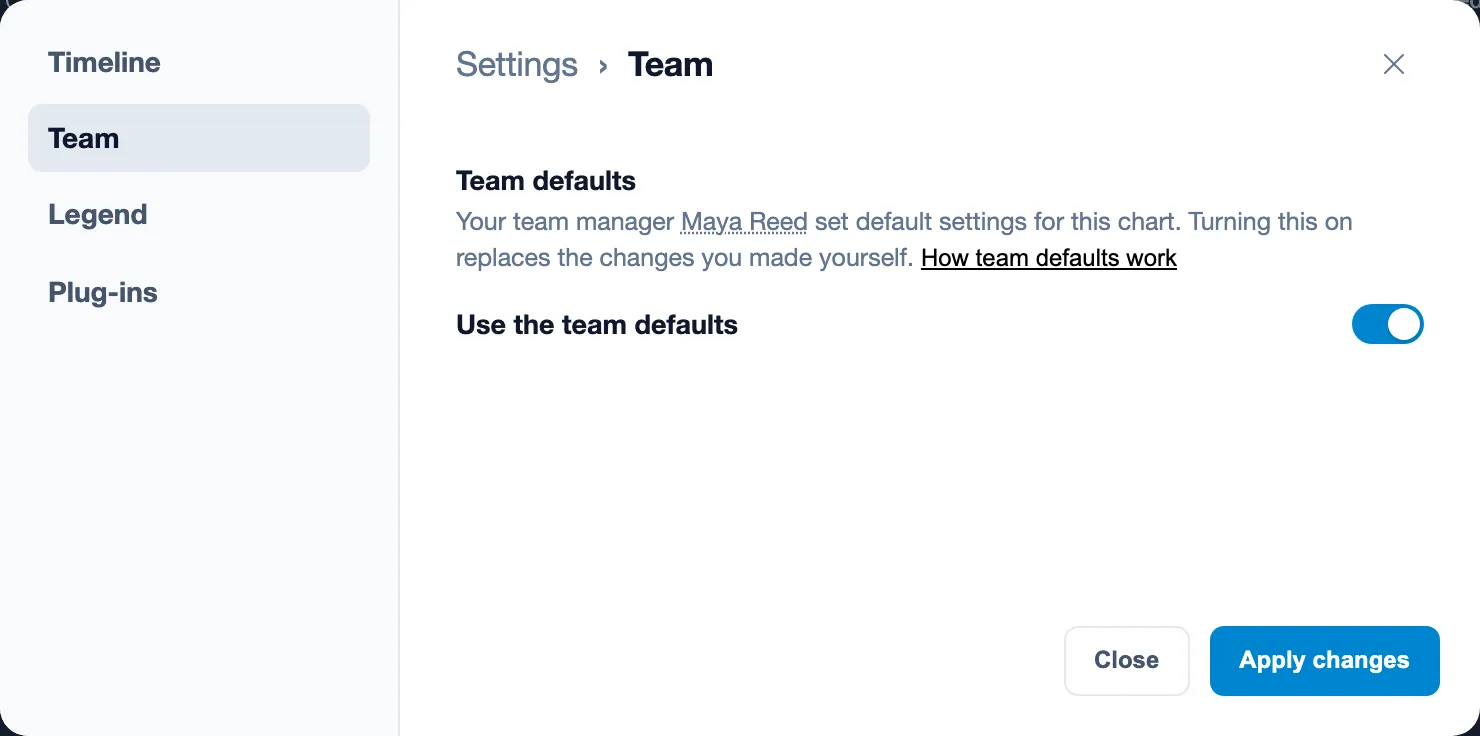
Switching replaces the changes you made to this chart yourself. Your other charts keep your own settings.
Don’t see the switch? Then your team owner hasn’t set default settings for this chart yet, and the Team tab tells you so. Anything you change on that chart stays yours.
While you use the team defaults
The chart follows your team owner’s settings, including changes they make later. Changes you make to the layout yourself, like resizing a column or picking another zoom level, last only until you reload the page.
Go back to your own settings
Open the Team tab again, turn off Use the team defaults and click Apply changes. The team layout stays as your starting point, and from then on every change you make to this chart is yours.