



Everyone on a Ganttify team can arrange a chart their own way: showing, hiding and resizing columns, picking a zoom level, setting a date format. That freedom gets in the way when you want the whole team looking at the plan the same way.
As the team owner, you can make your own view of a chart the default for your team.
Make your settings the team default
Set the chart up the way you want your team to see it. Then click Settings in the top left corner of the chart, choose the Team tab and turn on Use my settings as the team default. Click Apply changes to finish.
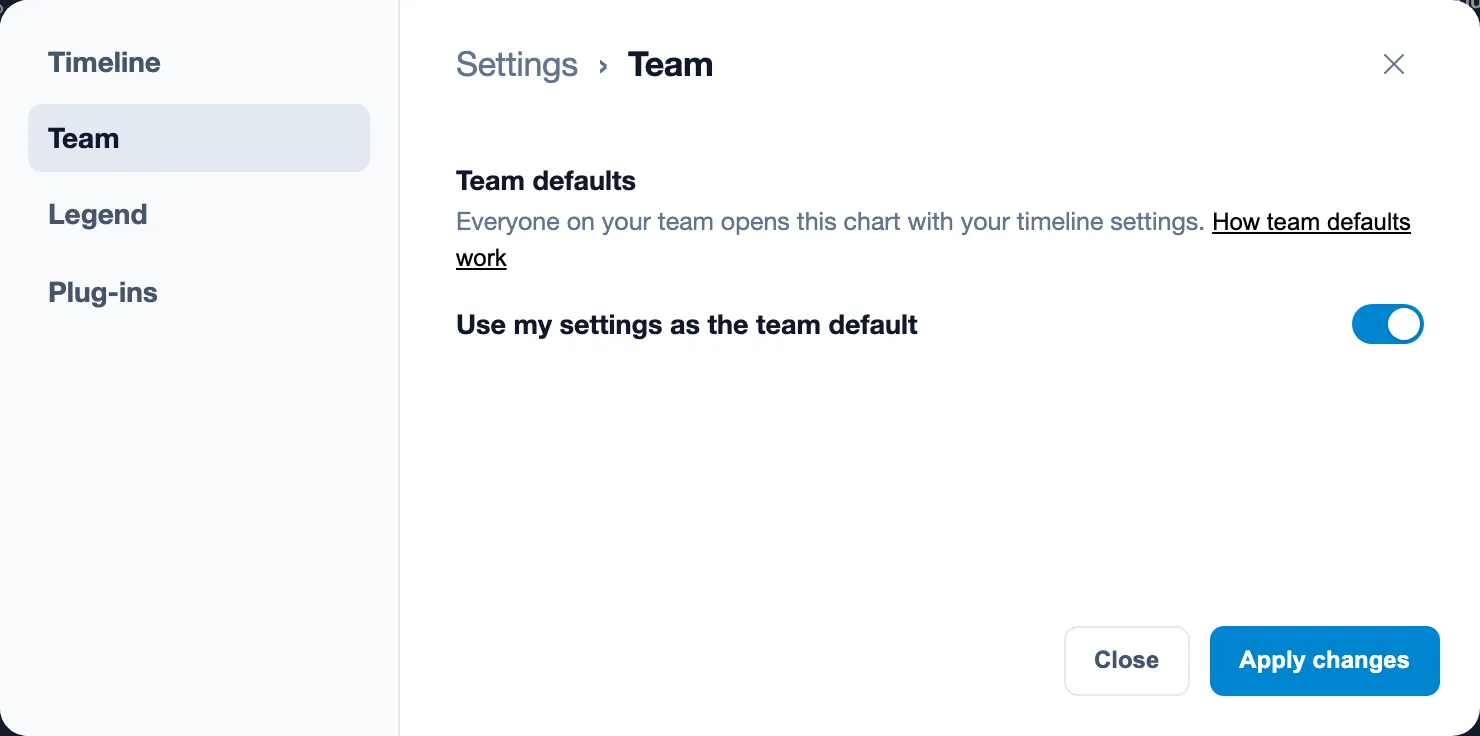
The default applies to this chart only, so repeat these steps on every chart you want your team to share.
What your team sees
Team members who open this chart for the first time see it exactly as you set it up, and can start working with the timeline instead of arranging columns first. When you adjust your view of the chart later, they get those changes too.
Team members who opened this chart before you set the default keep their own view. Each of them can switch to the team defaults from the same Team tab.
To stop sharing your settings, turn the switch off again and click Apply changes.