




Running a launch with a designer, two developers and a client who signs off on every phase? Give each of them a color, and one look at your chart shows who’s busy when. Colors work just as well for priority (red for urgent, green for whenever), for project phases from planning to delivery, or for telling clients and departments apart.
Give a time block a color
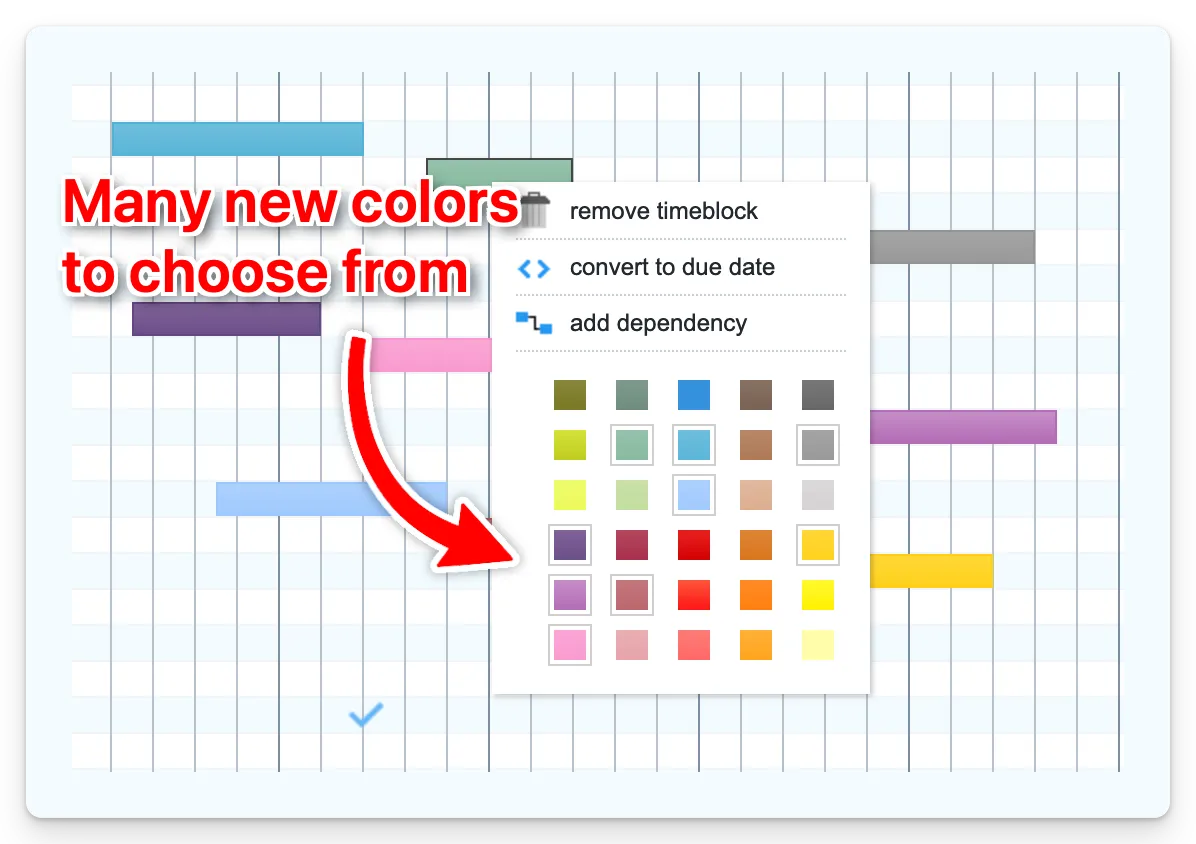
Right-click a time block and pick a color. To color several blocks in one go, select them all first. Adding a new block? Right-click an empty spot in the row, choose add time block and pick its color right there.
Name your colors in the legend
Every color you use shows up in the legend at the bottom of your chart. Give each one a name, such as “Urgent”, “Design team” or “Client A”, so anyone who opens the chart can read it without asking you what orange means. Don’t see the legend? Turn on Show legend in the chart’s settings.
Show one color at a time
Want to check a single teammate’s workload, or walk a client through only the review phase? Right-click a color in the legend and choose only show. Show all brings the rest back. The filter in the toolbar narrows by color too, alongside text, icons and dates.
Who sees your colors
Colors are saved with your chart in Ganttify, so teammates who open the same project see the same colors and names. Clients viewing a read-only chart you’ve shared see them too, and can use only show in the legend themselves. Your tasks in your integration stay exactly as they are: colors live only in your Gantt chart.