



Looking for the milestone button? In Ganttify, a milestone is a due date: a single day on the timeline, marked with an icon instead of a bar. Every task with a due date in your integration already shows one, any time block can become one, and the legend at the bottom of the chart tells you what each icon and color means.
Add a milestone to your Gantt chart
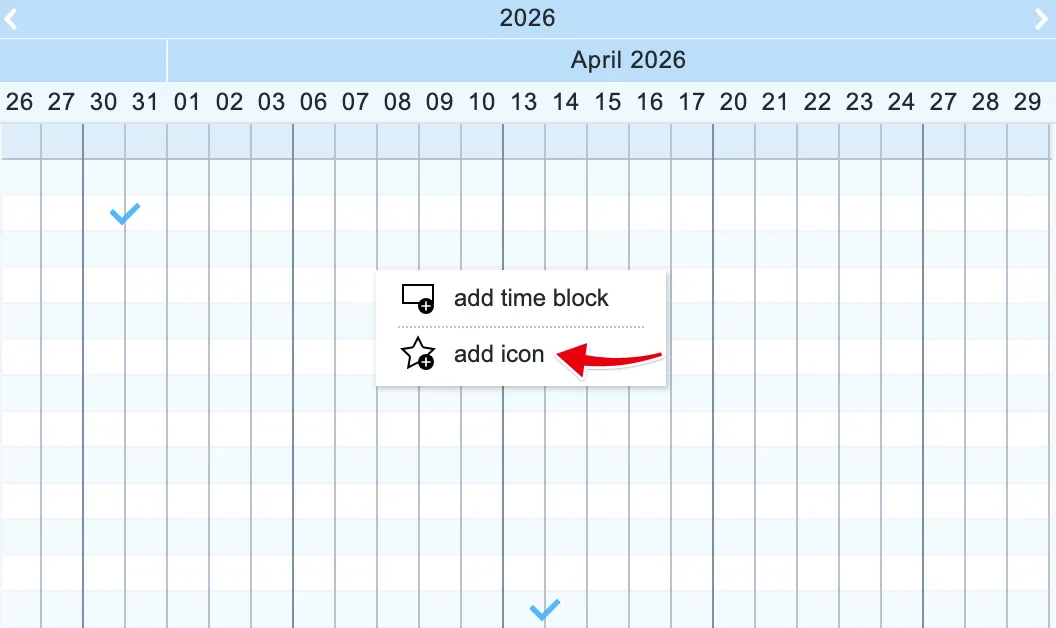
A task with a due date and no start date is drawn as a due date icon on that day. A launch, a review, the day the client signs off: those are your milestones. To add one, right-click the empty timeline next to the task on the day it is due, choose add icon and pick an icon. The date is written to the task in your integration, so your colleagues see it there too.
A task that already has a time block can become a milestone as well. Right-click the time block and choose convert to due date: the block’s end date becomes the due date. A milestone that turns out to take a week becomes a bar again with convert to time block; then drag its edges to the right length.
Remove a milestone
To take a milestone off the chart, right-click it and choose remove icon. That clears the date in your integration too, so use it for a date that was wrong, not for a task that is done. For a finished task, choose mark as complete instead.
Give milestones their own icon
Every due date starts with the same icon. To make milestones stand out from ordinary due dates, right-click a due date and pick a different icon for it: a flag for the launch, a star for the sign-off, whatever reads at a glance. You choose the icon per due date, and it gets its own line in the legend as soon as it is in use.
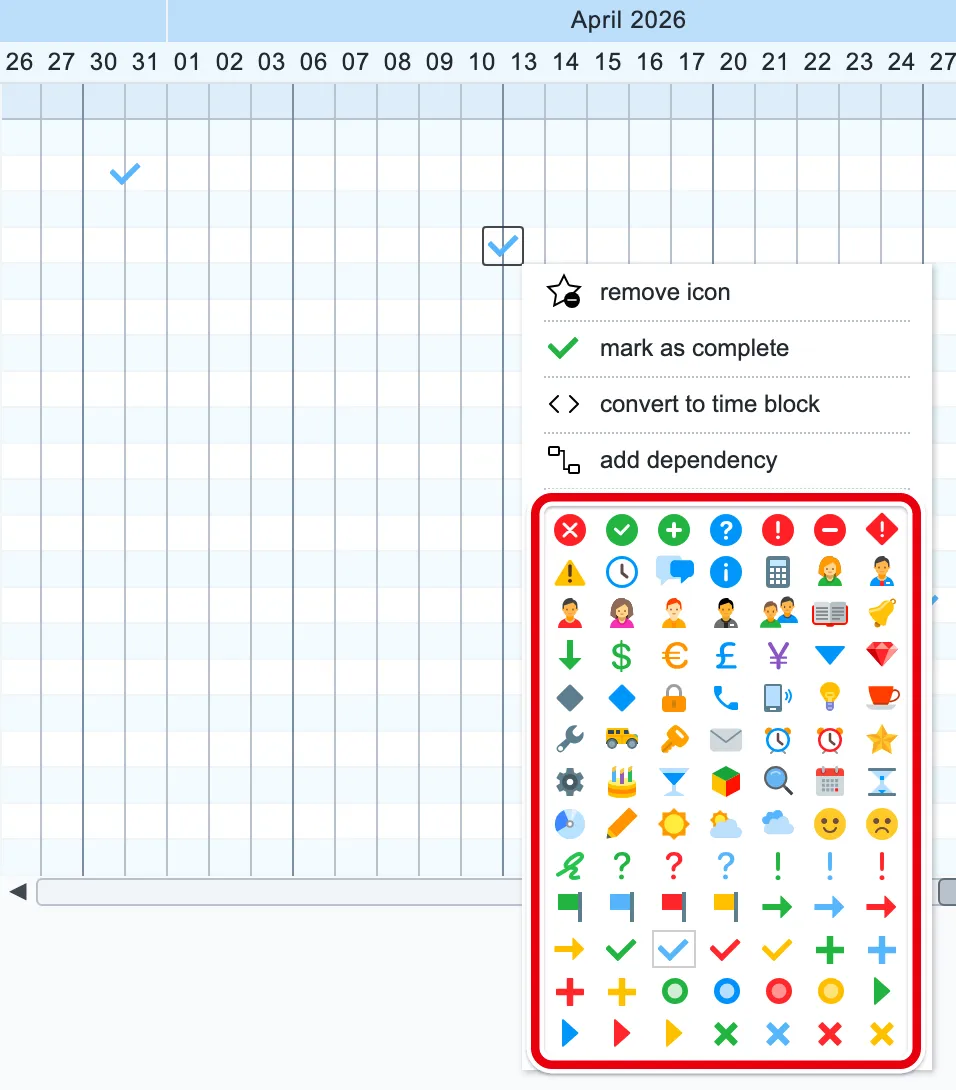
Icons do more than decorate. The toolbar filter works by icon, so one icon for every milestone gives you a milestone-only view, and a read-only link you share with a client shows the same icons.
What the legend shows
The legend is the bar at the bottom of the chart, and it is your key: every color and icon on the chart means what you decide it means. A new chart starts with a few defaults. Tasks are blue time blocks, completed tasks are green, calendar events are purple, and a due date is a checkmark that goes from blue to green once the task is complete. From there the legend grows with your chart. Each color you give a time block and each icon you pick for a due date gets a line of its own, under the name you type for it, so a red flag can mean “client deadline” and a star “launch” on one chart and something else entirely on the next. The arrows between items are dependencies.

Add, filter and hide from the legend
The legend is also a palette. Drag a time block from it onto a row to add one there. Right-click an entry and choose only show to filter the chart down to just that kind of item, or hide legend to take the legend off the chart. To bring it back, turn on Show legend on the Legend tab of the chart settings.
