



Need one Basecamp to-do or Card Table card to wait until another is done? Link them with a dependency in your Gantt chart for Basecamp. When the first one runs late, the work after it moves along, so you don’t have to push every date back by hand. Handy when development can’t start before the client signs off on the wireframes, and that sign-off arrives a week late.
Watch dependencies at work in this short video. The steps are written out below.
Add a dependency
Open your Basecamp project in Ganttify. Every to-do, card and schedule event gets its own row in the chart, shown as a time block or a due date, and any of them can wait for any other: a to-do for a card, a card for another card, an event for a to-do.
- Right-click the time block or due date of the item that comes first.
- Choose add dependency.
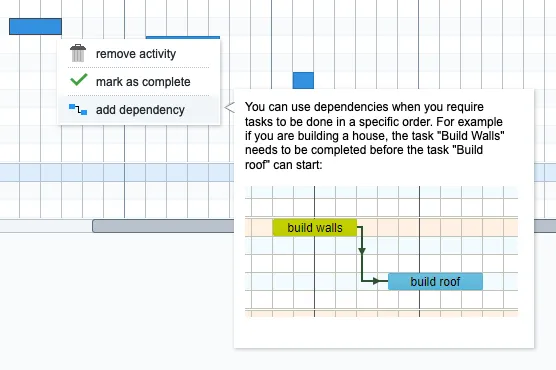
- Click the to-do, card or event that has to wait. An arrow now runs from the first item to the second.
When a date moves
A dependency means the second item starts once the first one ends. Drag a time block or due date later and everything that depends on it shifts along. Drag an item earlier than the one it waits for, and that one moves earlier too.
Remove a dependency
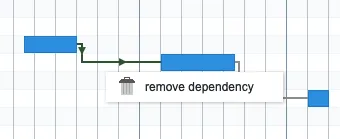
Right-click the arrow between two items and choose remove dependency. Both keep their current dates.
What your team sees in Basecamp
Basecamp gets every new date, so your team keeps working from the right deadlines. For a card that means its due date: Basecamp cards have no start date, so the start of a card stays in your chart. Start and end dates for cards in a Basecamp Card Table shows how that works.
The dependency itself lives in your Gantt chart. Basecamp shows the dates it sets, not the arrow between the items. To keep a client outside your Basecamp team in the loop when work runs late, send them a read-only chart: it stays current as the dates move.
Card Tables are part of the current Basecamp, so a Basecamp 2 chart has to-dos and schedule events to link, but no cards.