



Tracking bugs, a content pipeline or incoming client requests in a Basecamp Card Table? A card’s due date says when the work has to be done, not when it starts or how long it takes. In your Gantt chart for Basecamp, every card gets its own row, grouped under its column, right alongside your to-dos and schedule entries. Give a card a start date and you see how long the work really takes, what runs in parallel, and what your client can expect when.
The video takes you from a Card Table in Basecamp to the same cards on your timeline, in under a minute. The steps are written out below.
Show transcriptHide transcript
Where a card lands on your timeline
A card’s due date in Basecamp is where the card ends in your chart. A card with only a due date shows as a checkmark on that day, and a card with a start date as a time block.
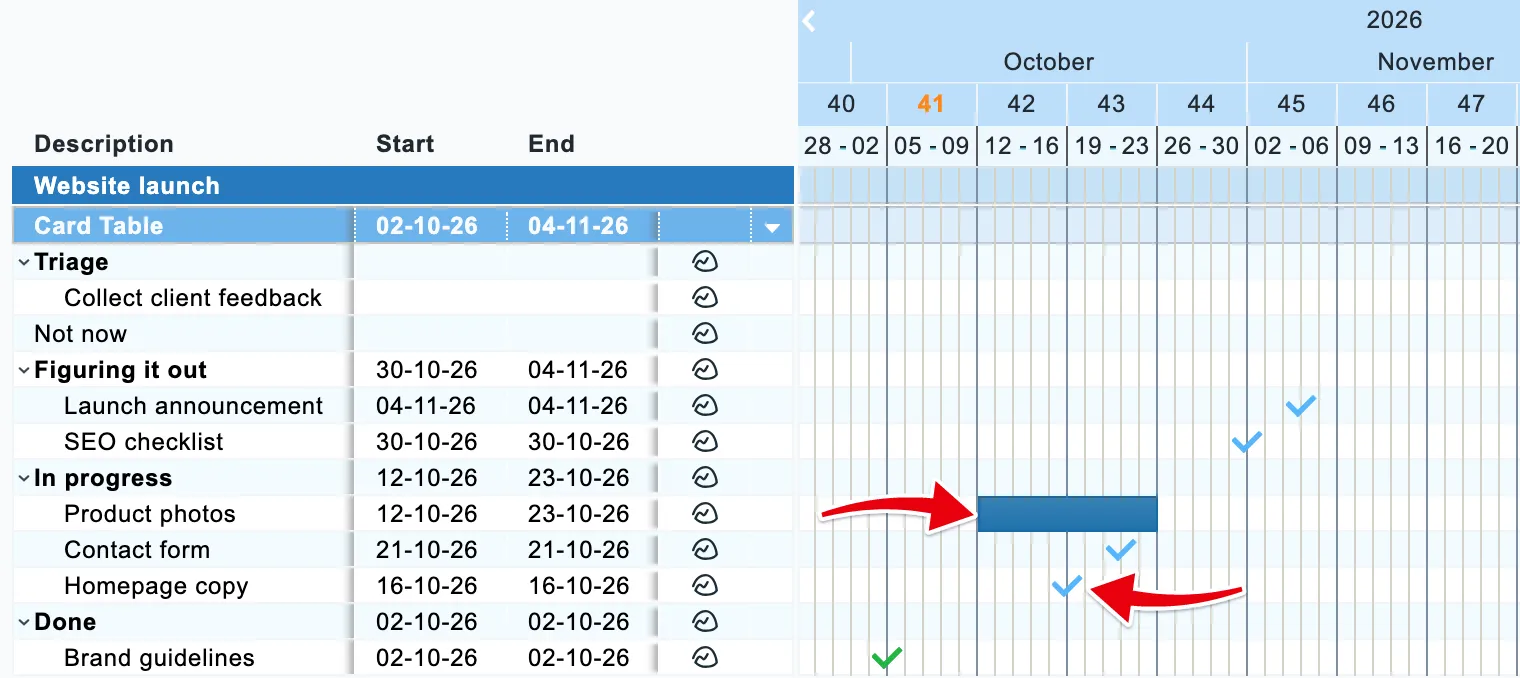
A card without a due date keeps its row, but its timeline stays empty until it has one. Cards that are still ideas in Triage often have no date yet, so hide those rows if they crowd your chart.
Give a card a start date
Basecamp cards have a due date but no start date, so you set the start in your chart.
- Right-click the card’s checkmark and choose convert to time block.
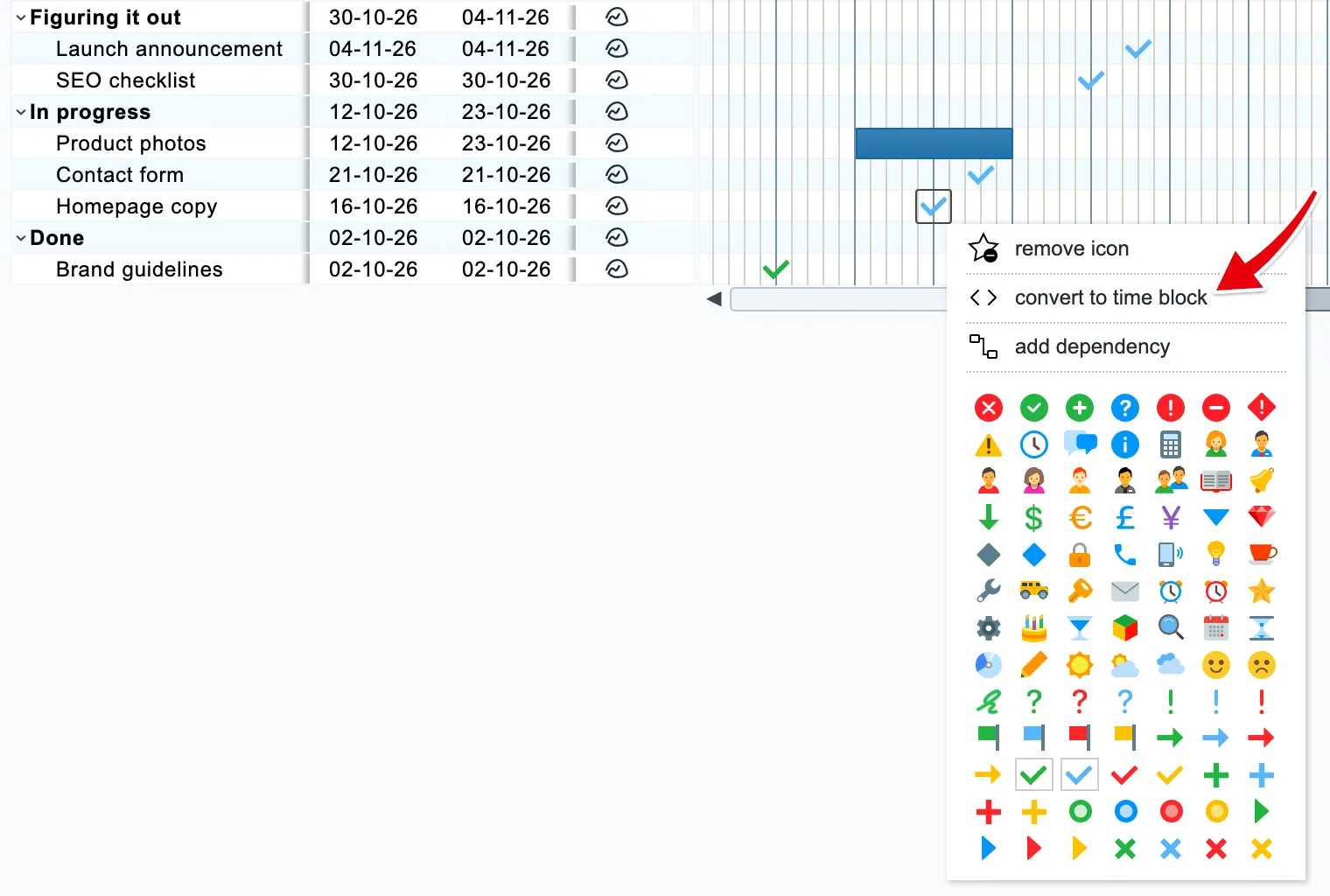
- Drag the left edge of the time block to the day the work begins.
Drag the right edge to change the due date, or drag the whole block to move start and end together. To go back to a single date, right-click the time block and choose convert to due date.
What your team sees in Basecamp
Only the due date travels back to Basecamp. Drag the end of a card’s time block and the card’s due date in Basecamp moves with it, so your team keeps working from the right deadline. When someone changes the due date in Basecamp instead, the end of the time block follows and the start stays where you put it.
Everyone who opens the chart sees the same start date, including a client you send a read-only chart. In Basecamp, the card shows only its due date.
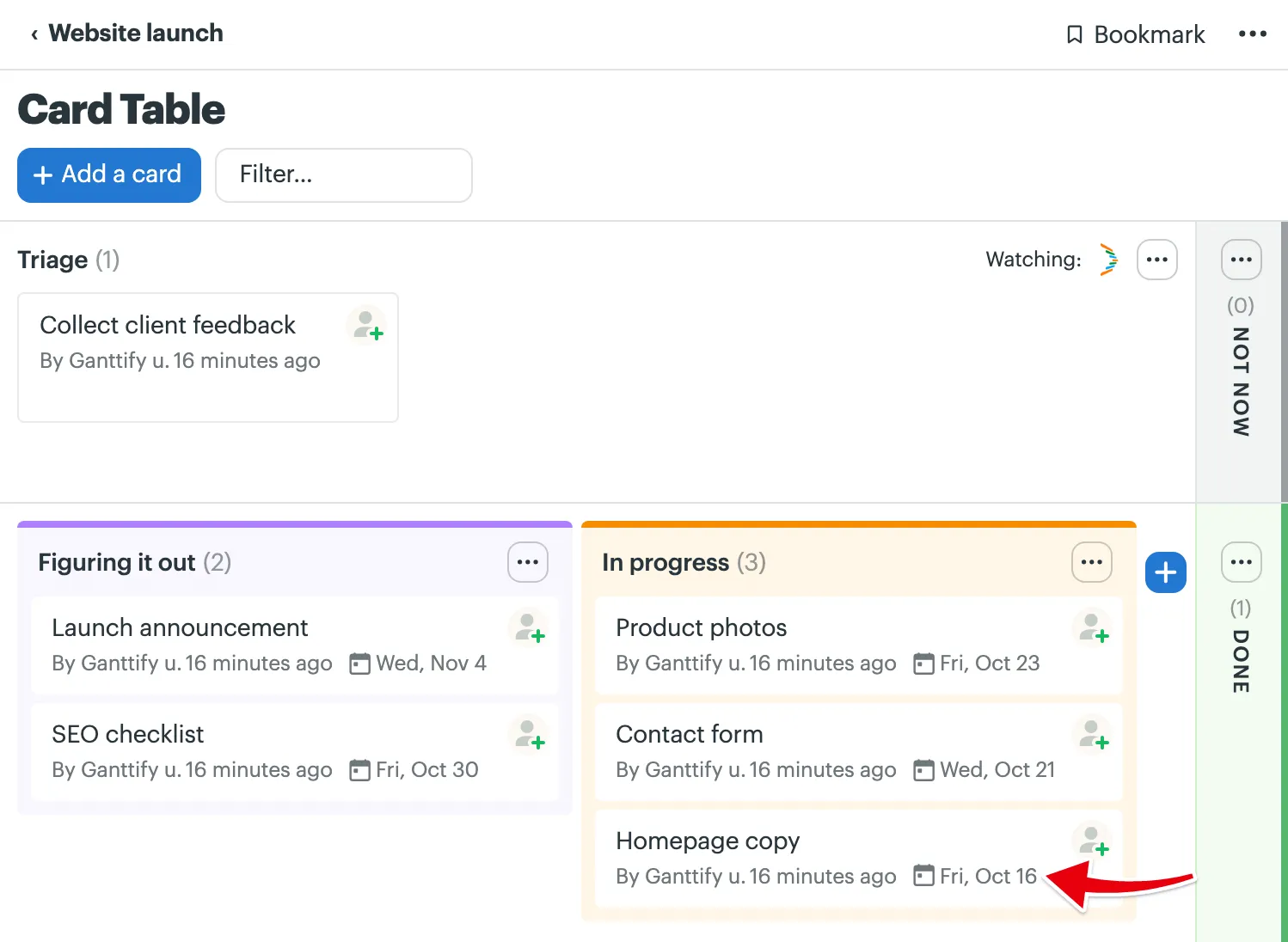
Card Tables are part of the current Basecamp, so they appear in charts for Basecamp 3 and later. A Basecamp 2 project has no Card Table and no card rows.