Where did that chart go? Every Gantt chart you open or save in Ganttify is kept for you under My Charts in the menu, the first page you see when you sign in. It lists your saved charts, with the projects each one holds, who it is shared with and when you last opened it.
What a chart is
A chart is a saved selection of projects, plus everything you did to it on the timeline: time blocks, colors, dependencies, hidden rows and your column setup. It is not a copy of your tasks. Those come from your integration every time you open the chart, so a saved chart is always current, however long ago you saved it.
New charts start on the Project List: tick one or more projects and click Open Chart or Save Chart. Either way the chart is saved with your other charts.
Find a chart
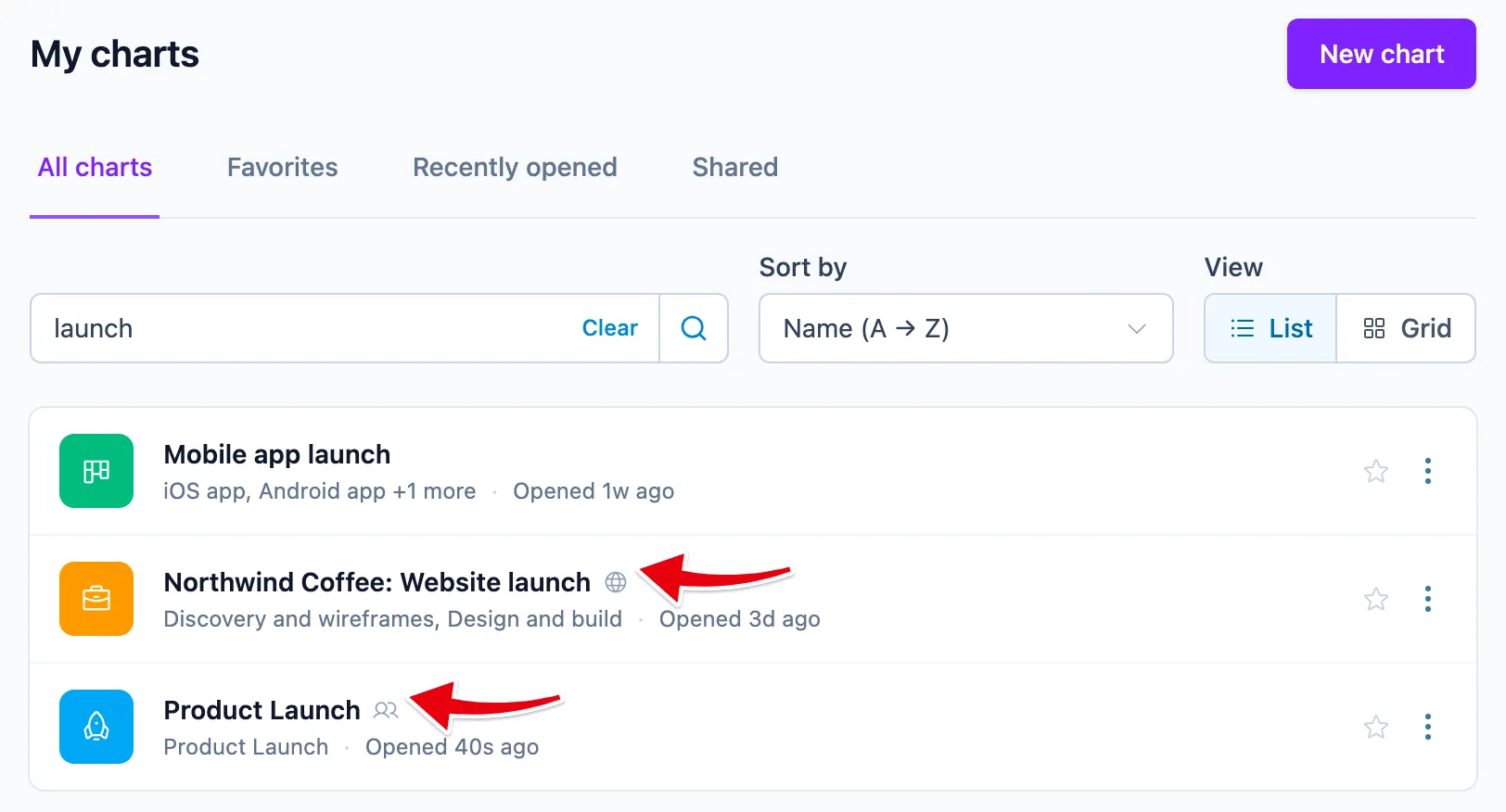
The tabs at the top sort your charts into All charts, Favorites, Recently opened and Shared. Type a few letters of a chart’s name into Search charts to narrow the list. Sort by orders the charts by name, by when you last opened them or by when they were created, and the view toggle switches between List and Grid.
A shared chart carries a small mark: a globe for “anyone with the link”, a lock for a link with a password, and a people icon for charts shared with team members (hover it to see how many).
Mark a chart as a favorite
Click the star next to a chart to mark it as a favorite. Favorites get their own tab, so the three charts you open every morning are one click away, however many others you keep.
Rename a chart
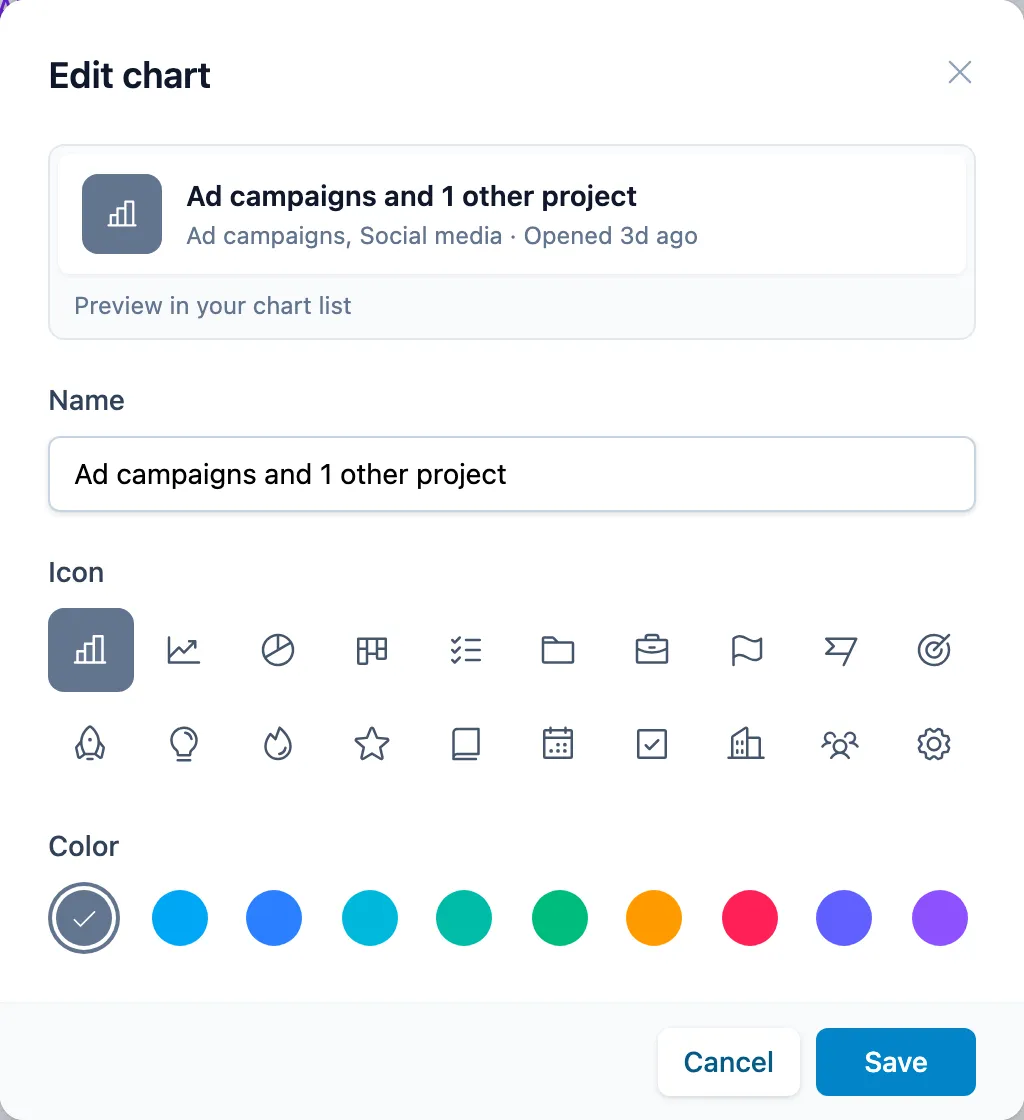
Hover over the icon in front of a chart’s name and you’ll see Edit appearance. Click it to give the chart a name, an icon and a color of your own. A chart made from several projects starts out named after them. A name like “Q3 launch” is easier to find, and it is the name your client sees on a read-only link.
Manage the projects in a chart
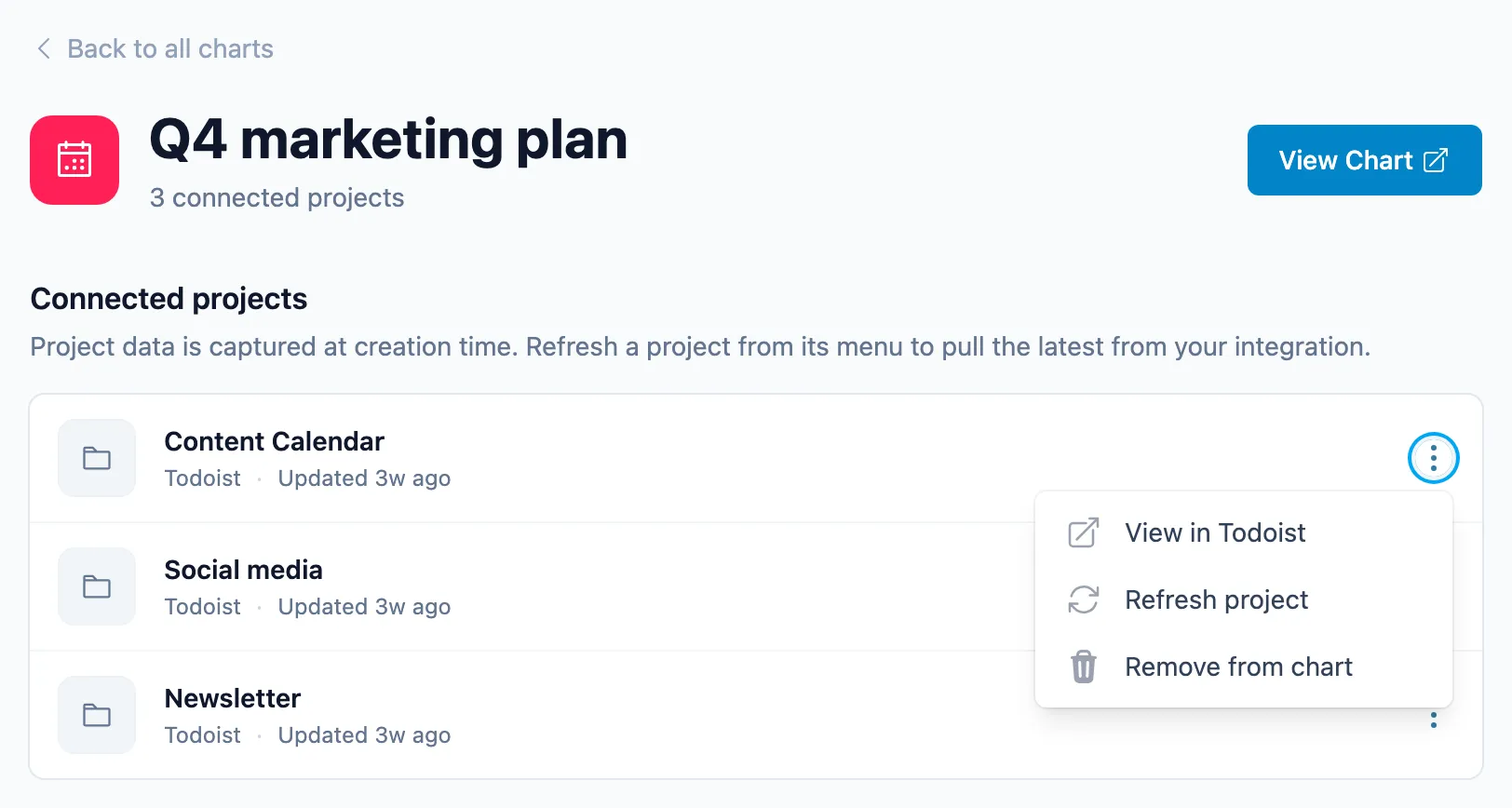
Open a chart’s three-dot menu and choose Manage projects to see the projects the chart is built from. From there you can open a project in your integration, pick up a new name or link with Refresh project, or remove the project from the chart. A project that was deleted or archived in your integration shows as not found. Remove it from the chart to clean up the rows it left behind.
Share a chart
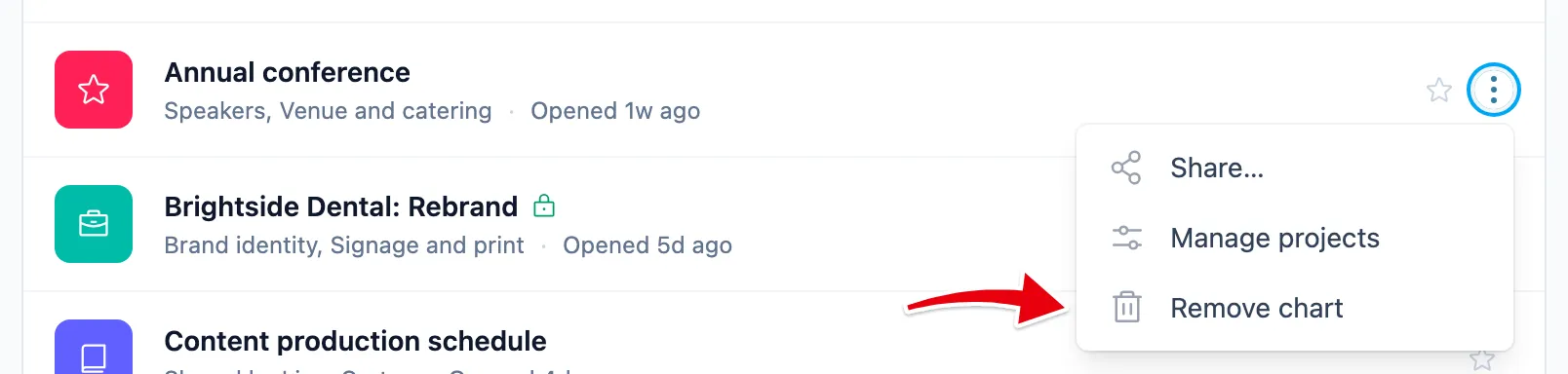
Choose Share… in a chart’s three-dot menu to share a read-only link with clients, or to share the chart with your team. The Shared tab lists the charts you share and the ones colleagues share with you.
Remove a chart
Looking to delete a chart? Choose Remove chart in its three-dot menu. That deletes the chart, including its dependencies and chart settings. Nothing changes in your integration: your projects, tasks and dates stay exactly as they were, and you can build the same chart again from the Project List at any time. Only want it out of sight? Take it off your favorites, or sort by when you last opened charts so it drops down the list.