



Want the weekends out of the way, or the week to start on Monday? Every Gantt chart has a Settings window for that. The settings belong to the chart you have open, so one chart can run seven days a week while another shows office hours only.
Open the Gantt chart settings
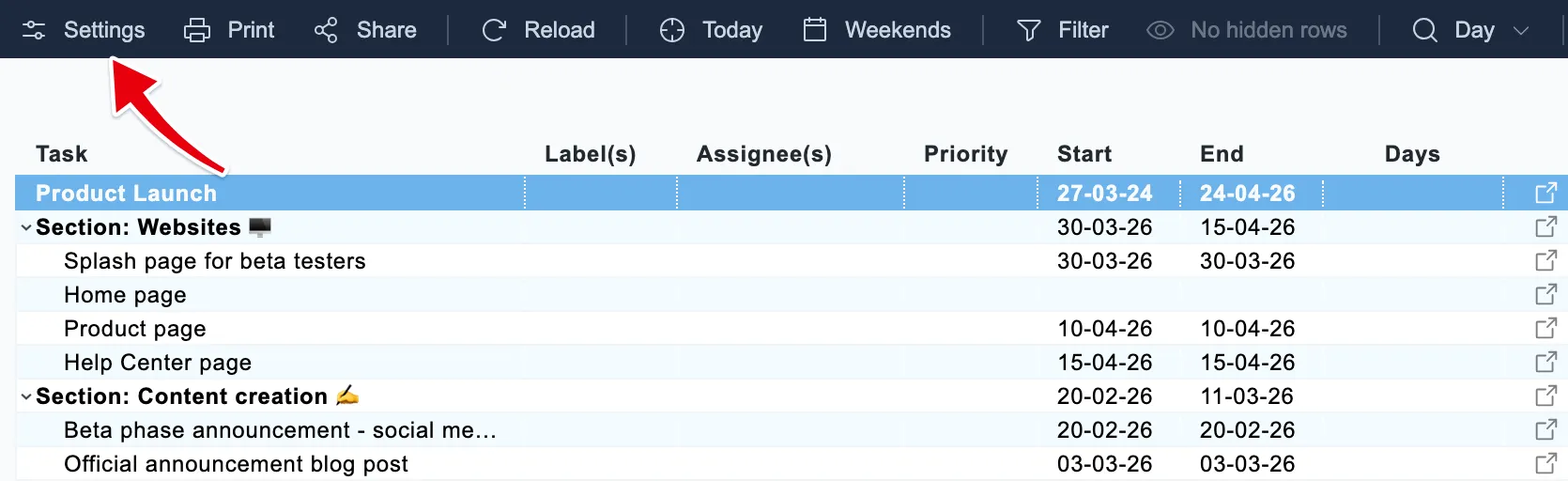
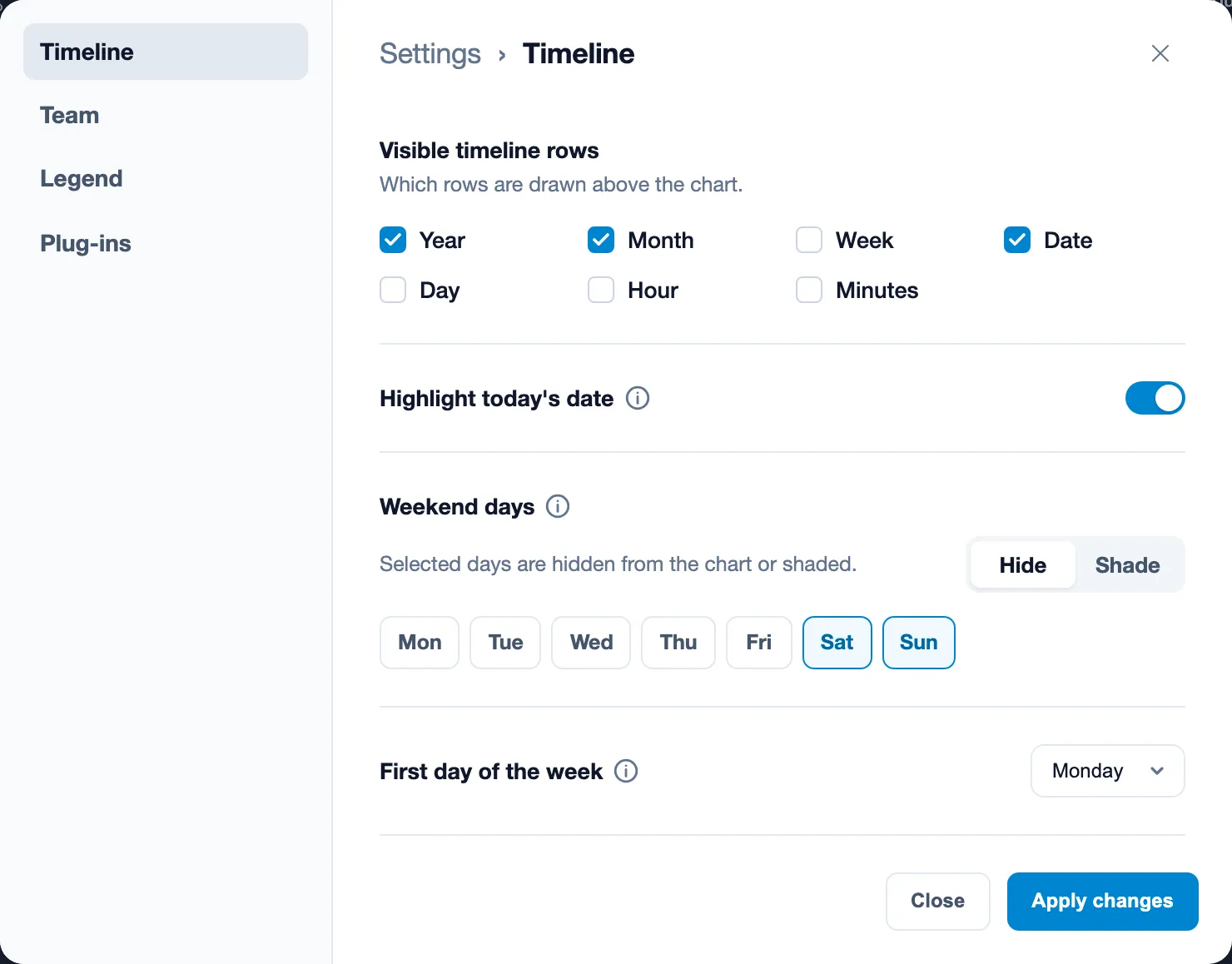
Click Settings in the top left corner of the chart. The window has four tabs. Timeline holds most of the settings on this page, Legend the legend and your logo, Plug-ins the extras under Extend Ganttify, and Team the team defaults. Change what you need and click Apply changes.
Timeline rows, working hours and the clock
Under Visible timeline rows you pick which rows are drawn above the chart: year, month, week, date, day, and for detailed planning hour and minutes. Fewer rows leave more room for the chart itself. A plan that runs over a year reads best with months and weeks; a launch week needs dates and days.
Working hours sets the start and the end of the working day for the hour and minute rows, so it only matters when one of those rows is on. Set 09:00 to 17:00 and the hour row shows those hours instead of all twenty-four. Clock switches the same rows between a 24-hour and a 12-hour clock.
First day of the week and week numbers
First day of the week decides where each week column begins: Monday, Sunday or Saturday. The tip next to the setting shows what is usual where. Monday is the norm in Europe, Asia and Oceania, Sunday in North America, China, Africa and Latin America, and Saturday in most of the Middle East.
The same choice sets the week numbering. With Monday as the first day, week 1 is the week that includes January 4th, the ISO rule most European calendars use. With Sunday or Saturday, week 1 is the week that includes January 1st. Pick the first day your team’s calendars use and the week numbers on the chart match the ones in your meetings.
Weekends and public holidays
Under Weekend days, a switch offers two options. Hide leaves the weekend out of the chart altogether, so weekdays sit side by side and the chart is more compact. Shade keeps every day on the timeline and gives the weekend columns a grey background. After switching between the two, open a task that spans a weekend and compare its dates with the ones in your integration; if anything looks off, email support@ganttify.com with the chart name.
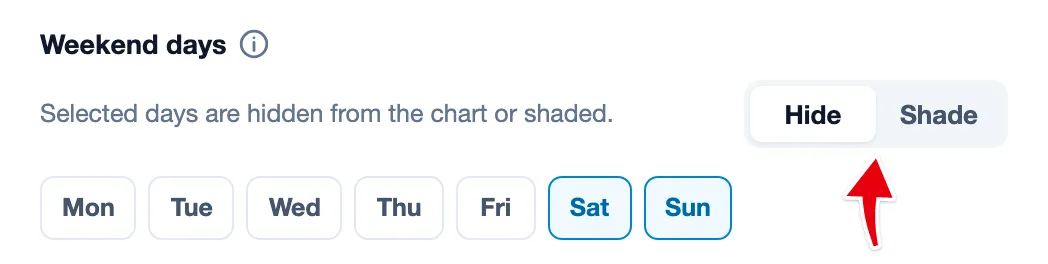
In the same section you tick which days count as the weekend, so a Friday and Saturday weekend or a six-day week works just as well.
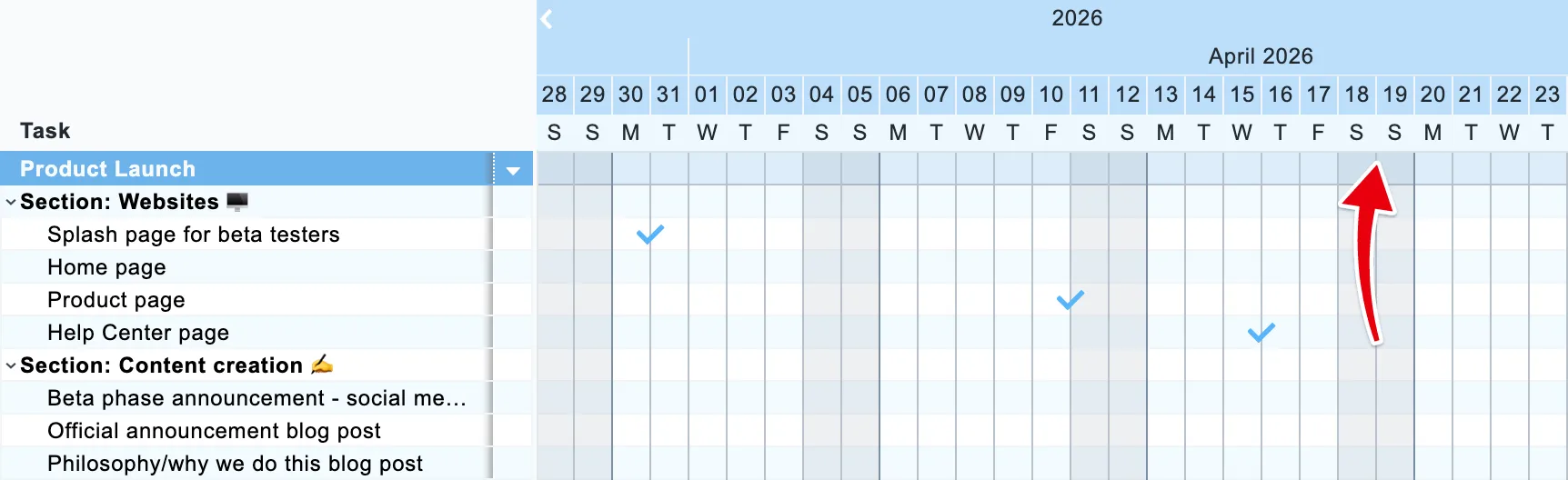
There is no setting for public holidays or office closures. If you want a closed week to stand out, add a time block for it in a row of its own and give it a color of its own.
Today’s date and the reference date line
Highlight today’s date colors today’s date orange in the timeline, and hovering it shows an orange line down the grid. Switch it off if you don’t want today marked. For a line that stays, turn on the Reference date line under Extend Ganttify: a black vertical line above the grid that you place on any date, for example a deadline or how far the project has come.
Legend, logo and labels on time blocks
Under The legend you choose whether the legend shows at all and whether it carries your logo, which you upload in the same section. The logo then appears on the chart and in every export.
Time block labels, on the Timeline tab, writes the task name on each time block, so you can read the plan without looking at the row names on the left. It helps on a wide chart and clutters a narrow one.
Date format
Date format switches this chart and its exports between day-month-year and month-day-year. A chart follows your default format until you pick the other one; then a checkbox appears to save that format as your default for all charts. See set a default date format.
Extend Ganttify and the team defaults
The more advanced parts are off until you need them. Unlike the rest of this page, the options under Extend Ganttify apply to every chart you open, not just this one. Besides the reference date line, they are Total duration in group headers, which draws a pattern on a collapsed group’s header matching the time blocks inside it; Special columns, custom columns on the left side of the chart; and an Expand and collapse all groups button in the toolbar.
Everything above is your own view of the chart. If your team should open the chart the same way, the Team tab lets the team owner set these settings as the team default, and lets members switch to the team defaults.