




Your Todoist tasks have a due date, but every time block on your Gantt chart needs a start and an end. Here is how the two fit together, and what that means for deadlines, times, recurring tasks and completed tasks.
Your Todoist due date is the end of the time block
A task’s due date in Todoist is where the task ends on your timeline. A task with only a due date shows as a due date icon on that day, the same way a milestone does. Give it a start date, by adding a time block or converting the due date into one, and the task becomes a time block that ends on the due date.
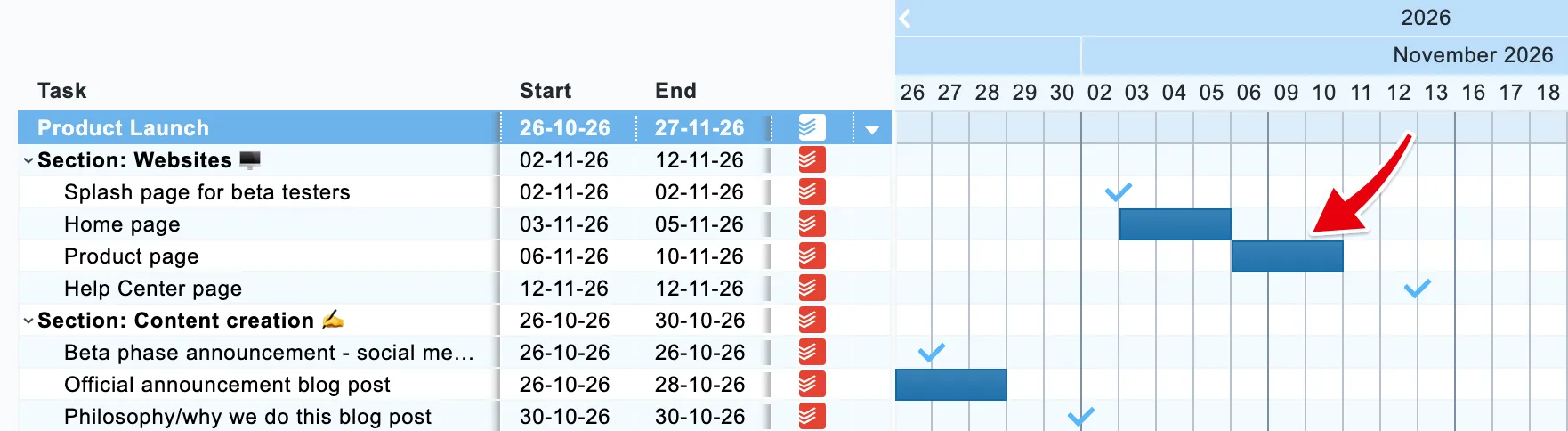
The length of that time block lives in your chart, not in Todoist. Todoist keeps the due date; your chart remembers how many days before it the work starts. Drag the left edge and only your chart changes. Drag the right edge or move the whole block, and the due date in Todoist moves with it: your Todoist app shows the new date within moments. If a due date in Todoist looks like it moved by itself, this is usually why: the task was moved on the chart.
Your chart works from the Todoist Date field
The timeline uses each task’s Date, and your Deadline stays exactly as you set it in Todoist. If you use Deadline for the day a task must be done and Date for the day you work on it, keep doing that in Todoist: the chart shows the Date. Want the deadline on the timeline too? Give it a task of its own, and it shows as a due date icon.
Why your Todoist task now shows a 5 PM time
Dates in a Gantt chart have a time of day, because a time block has to end somewhere on its last day. A Todoist task with a date and no time ends at 17:00 on your chart. When a move on the chart changes the due date, that time travels to Todoist with the new date. That is why a task that read “Friday” in Todoist can read “Friday 5 PM” after you moved it on the chart. The day is still the day you picked. To take the time off again, edit the task in Todoist and choose a date without a time.
A task that already has a time in Todoist keeps it: the time block ends at that time, in the time zone the task was set in.
Recurring Todoist tasks show their next date
A recurring task shows the date of its next occurrence, as a due date icon or as a time block ending there. Completing it in Todoist rolls the date forward, and the chart follows on the next reload. Moving a recurring task on the chart moves that next occurrence, just as changing its date in Todoist would.
Completed tasks disappear from the chart
Your chart shows the work that is still open. Complete a task in Todoist, or right-click it on the chart and mark it completed, and it disappears from the timeline on the next reload. That keeps a long project readable, but it also means the chart isn’t a record of what was done. Need to see finished work? Uncomplete the task in Todoist and it comes back, dates and all.
Todoist projects, sections and subtasks on the chart
Each Todoist project you pick in the Project List becomes a group of rows on the chart. Sections inside a project become groups inside that group, and subtasks sit indented under their parent task. Sub-projects appear under their parent project. Labels show on the task’s row, so you can tell at a glance which tasks carry which label.
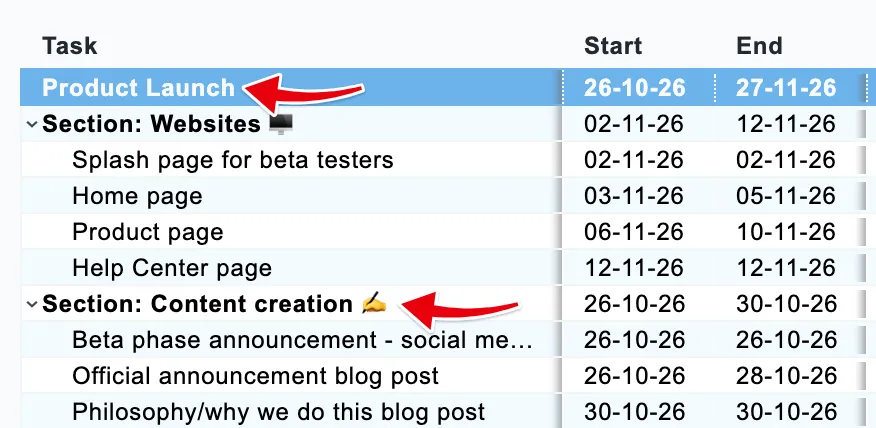
Names, labels, sections and the order of tasks are edited in Todoist, and the chart shows them as they are. Dates and durations are what the chart is for: set up the project in Todoist, plan it on the timeline, and the two stay in step. Need one task to wait for another? Add a dependency between Todoist tasks, and the chart moves the follow-up when the first one slips.
A Todoist project isn’t showing in your Project List
A project that is archived in Todoist, or that you no longer have access to in Todoist, doesn’t appear in your Project List. Click Refresh projects on the Project List to fetch a fresh list from Todoist.
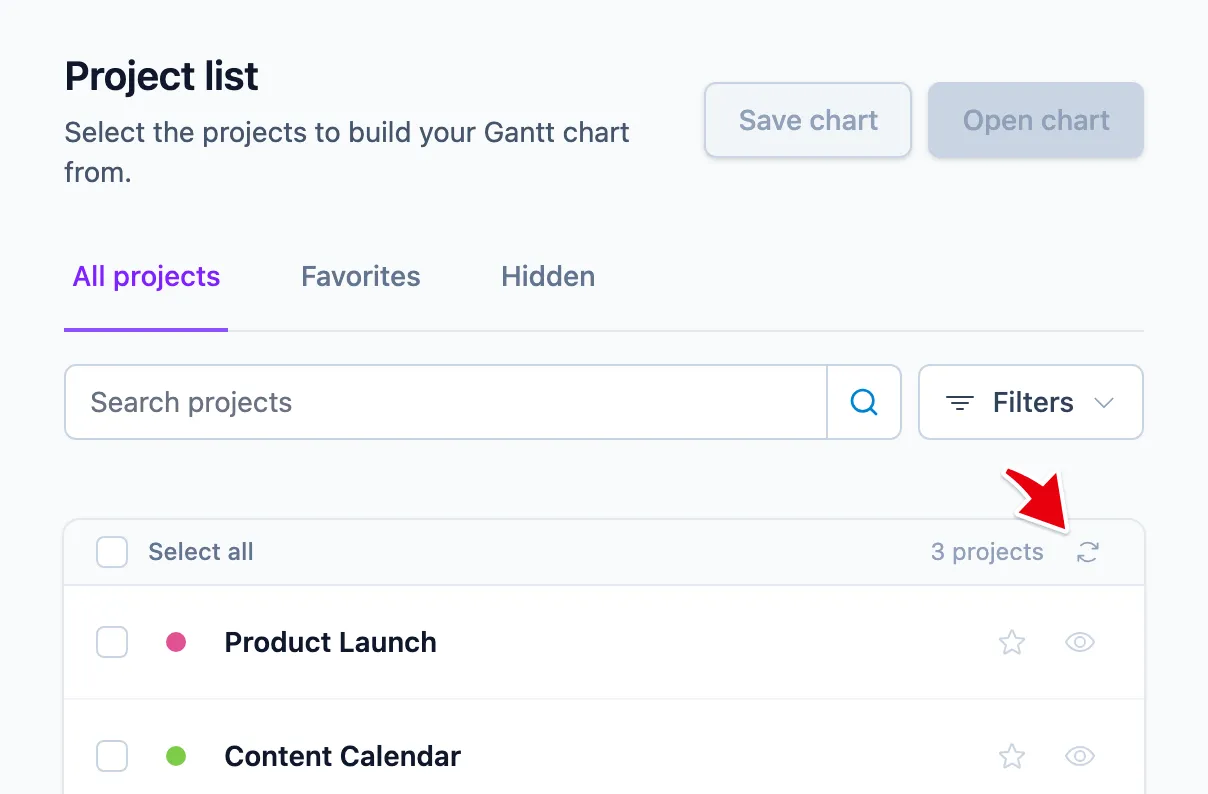
If the project is still missing, reconnect your integration. Missing a task rather than a project? Completed tasks leave the chart.